The manual: how to sign in, make an event, share the link, and what to do when something goes wrong.
1. How do I sign in without a password?
There is no password to remember. You get a link in your mail every time, and the link signs you in.
Steps
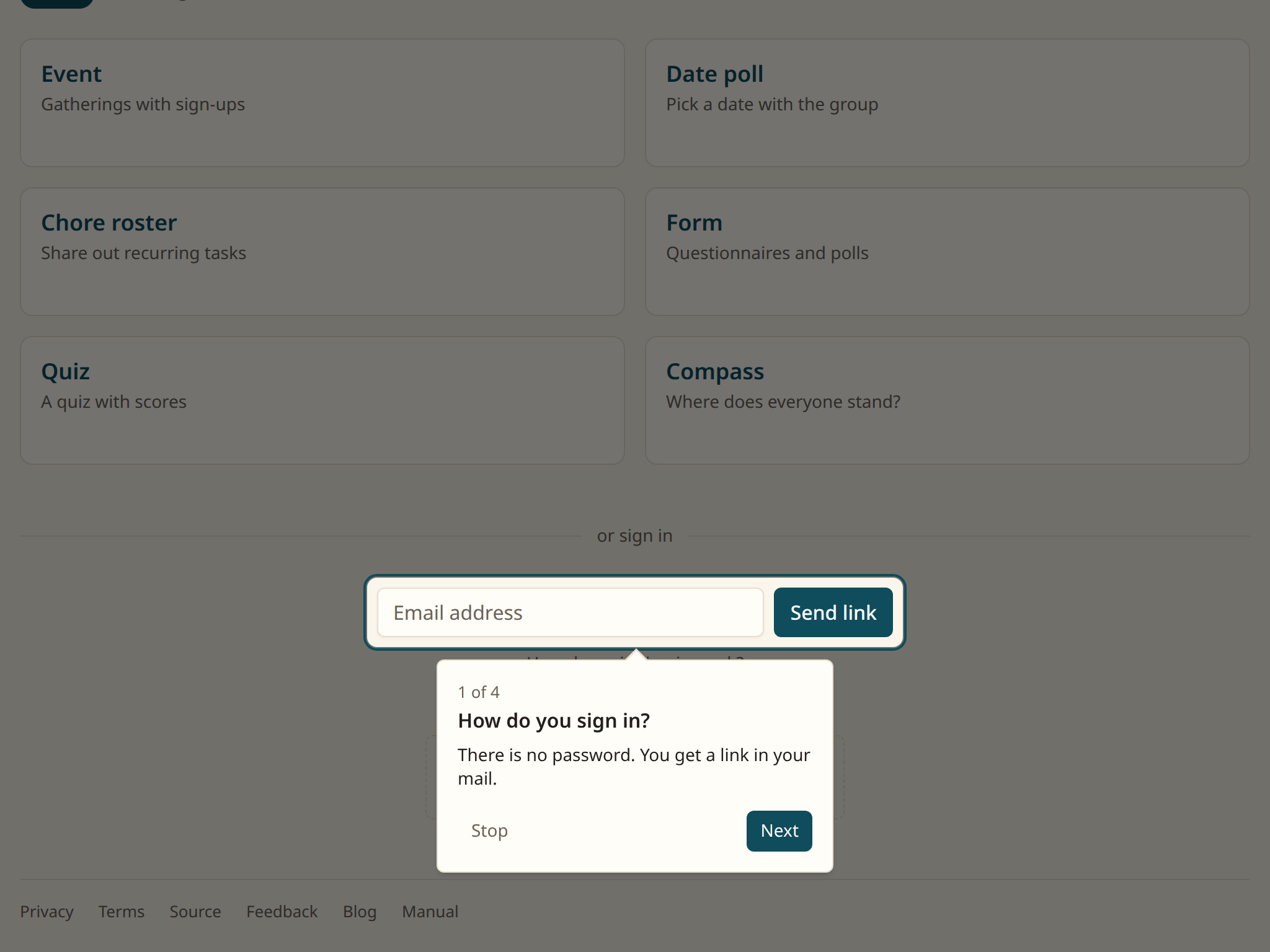
Go to the front page and type your email address at the bottom.
The sign-in form at the bottom of the front page
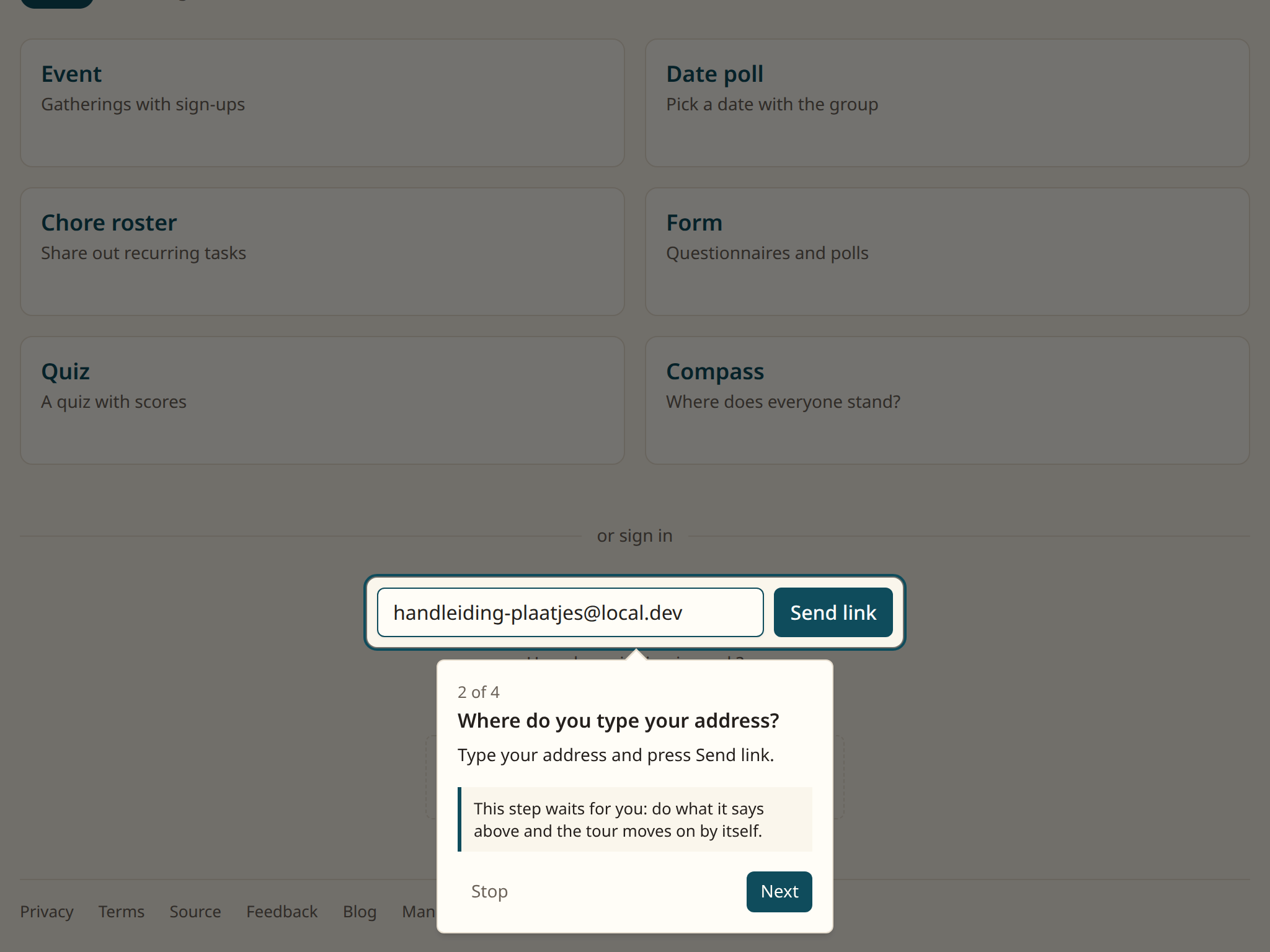
Click Send link.
The address is filled in, with Send link next to it
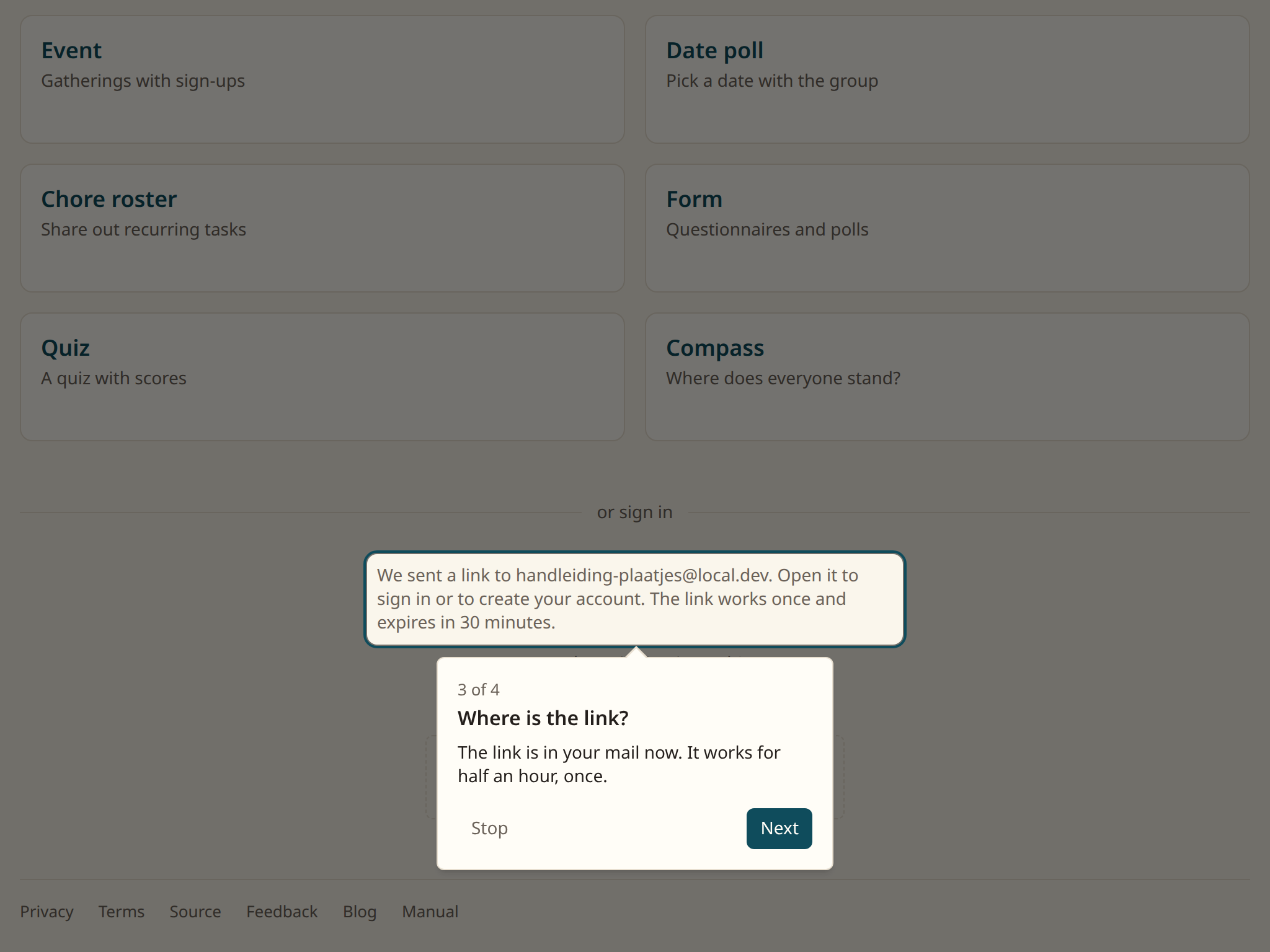
Open your mail and click the link. It works for half an hour, and only once.
The page says the link is on its way
You now see
The page with the tiles: Event, Date poll, Roster, Questionnaire, Quiz and Compass. The menu is at the top right.
The page with the tiles after signing in
No mail? Check your spam folder. If it is not there either, just ask for a new link. The old one expires by itself.
The link says it has expired? It was older than half an hour, or already used once. Ask for a new one on the front page.
Questions
Why no password? A password gets lost, reused, or leaked. A link in your mail works with what you already have, and there is nothing to leak.
Can I stay signed in? Yes. As long as you do not clear the browser, you stay signed in on that device. On another device you ask for a new link.
I use a shared computer. Sign out through the menu at the top right, at the bottom. That also clears anything you had not saved yet.
2. How do I make an event?
An event is a gathering people sign up for. You make one in a minute, and it has its own page at once.
Steps
Click the Event tile.
The Event tile on the front page
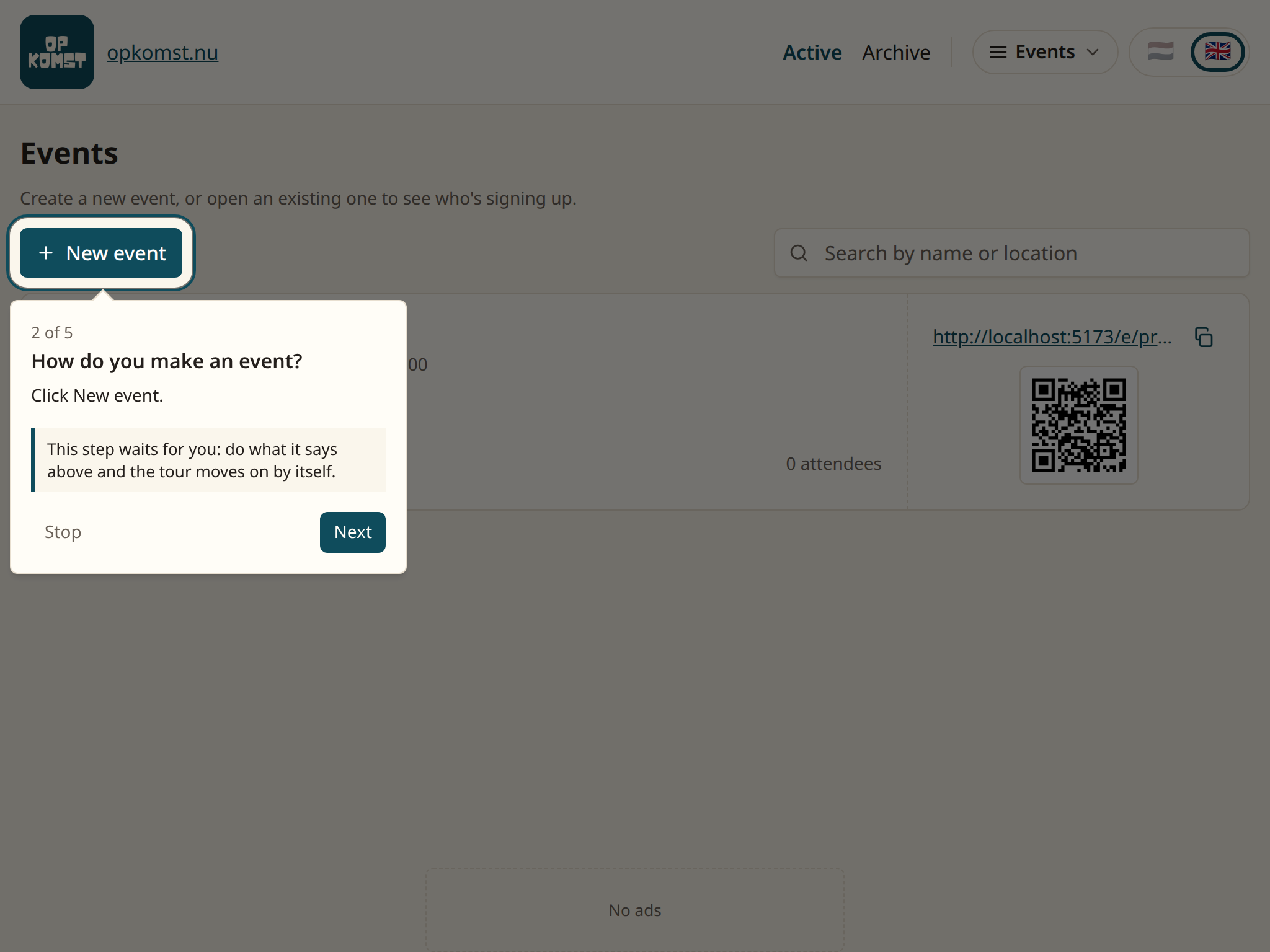
Click New event.
The New event button above the list
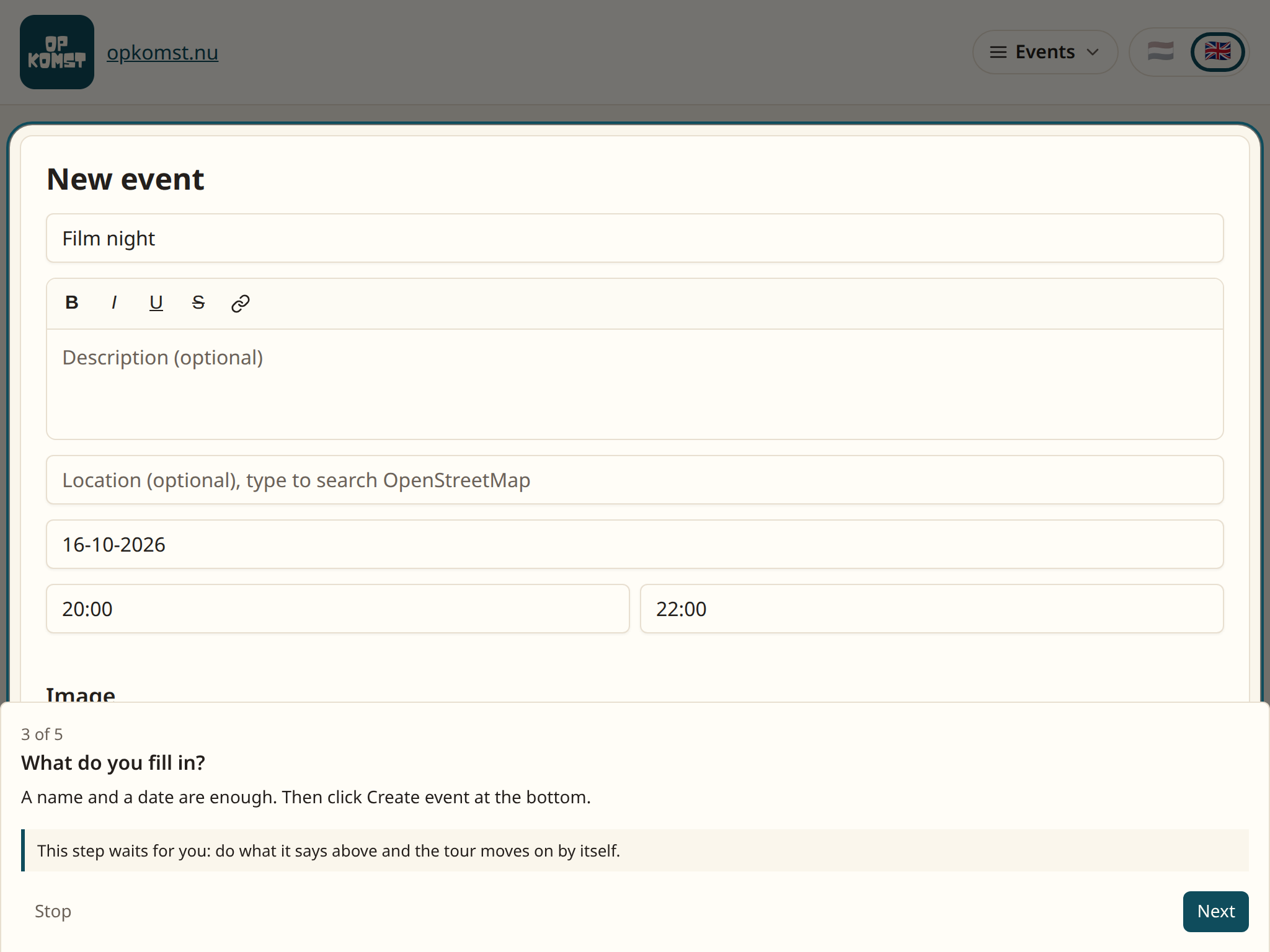
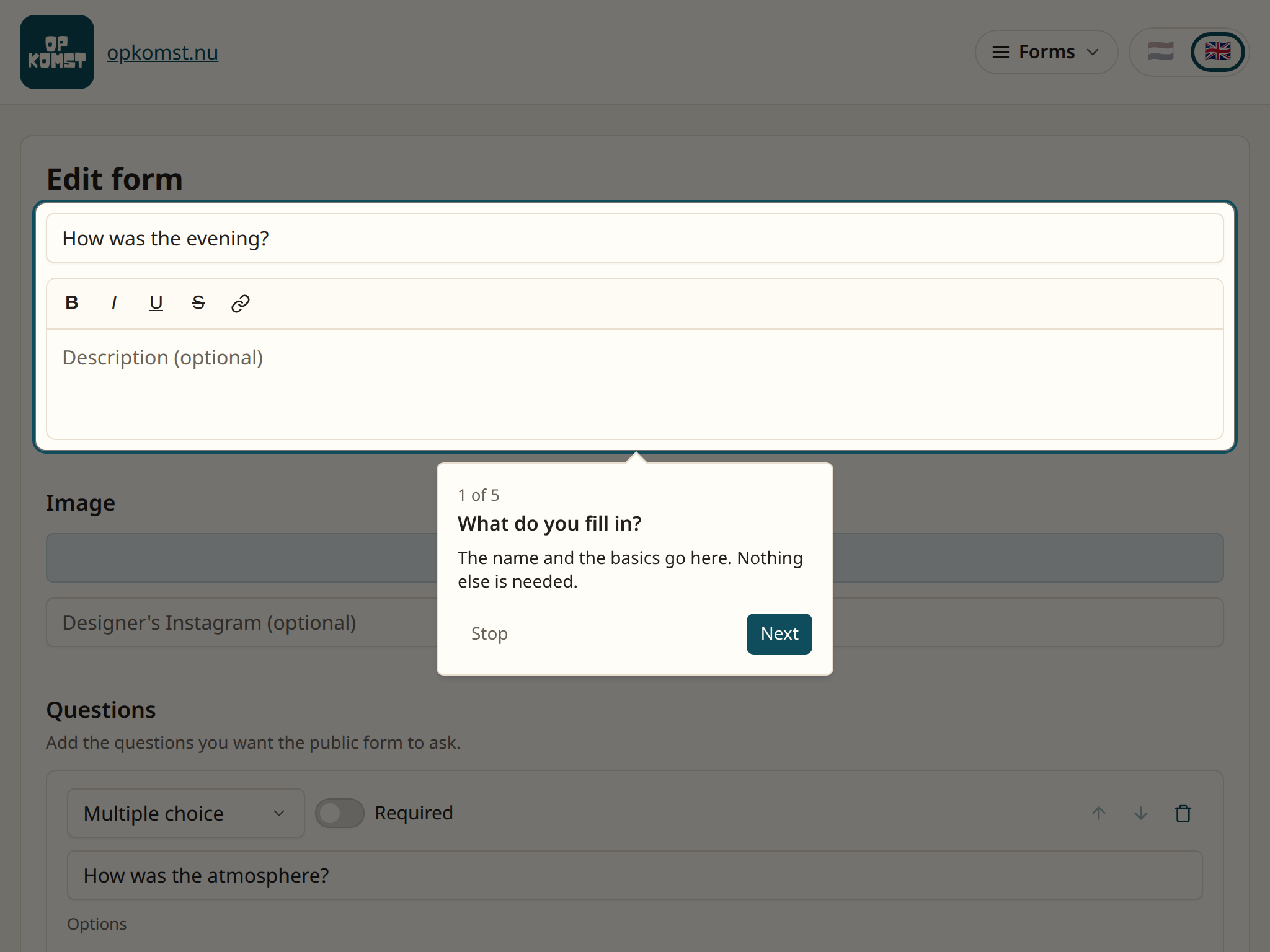
Type a title and pick a date. You may add a description and a location, but you do not have to.
The form with a title and a date
Click Create event at the bottom.
You now see
Your event's page, with the link and the QR code at the top right. You share those with whoever should come. The next chapter says how.
The new event's page, with the link at the top right
A message says the name is missing? Type a title and click again.
The form is gone without saving? Go back to New event. What you typed is still there, because the app keeps a draft in your browser.
Questions
Can I change it later? Yes. Open the event and click Edit. Anyone who already signed up stays signed up.
What is under Show advanced options? The switches: whether the event repeats, whether people can say what they will help with, and how they found you. Each switch has a line of explanation under it.
Can I add a picture? Yes, after saving. The edit page has an Upload image button. The picture appears on the sign-up page.
What language is the sign-up page in? You pick that at the bottom of the form under Language. Your own screen is separate from it.
3. Who is coming, and how do I share the link?
Every event has a link and a QR code. Anyone who opens it can sign up, without an account.
Steps
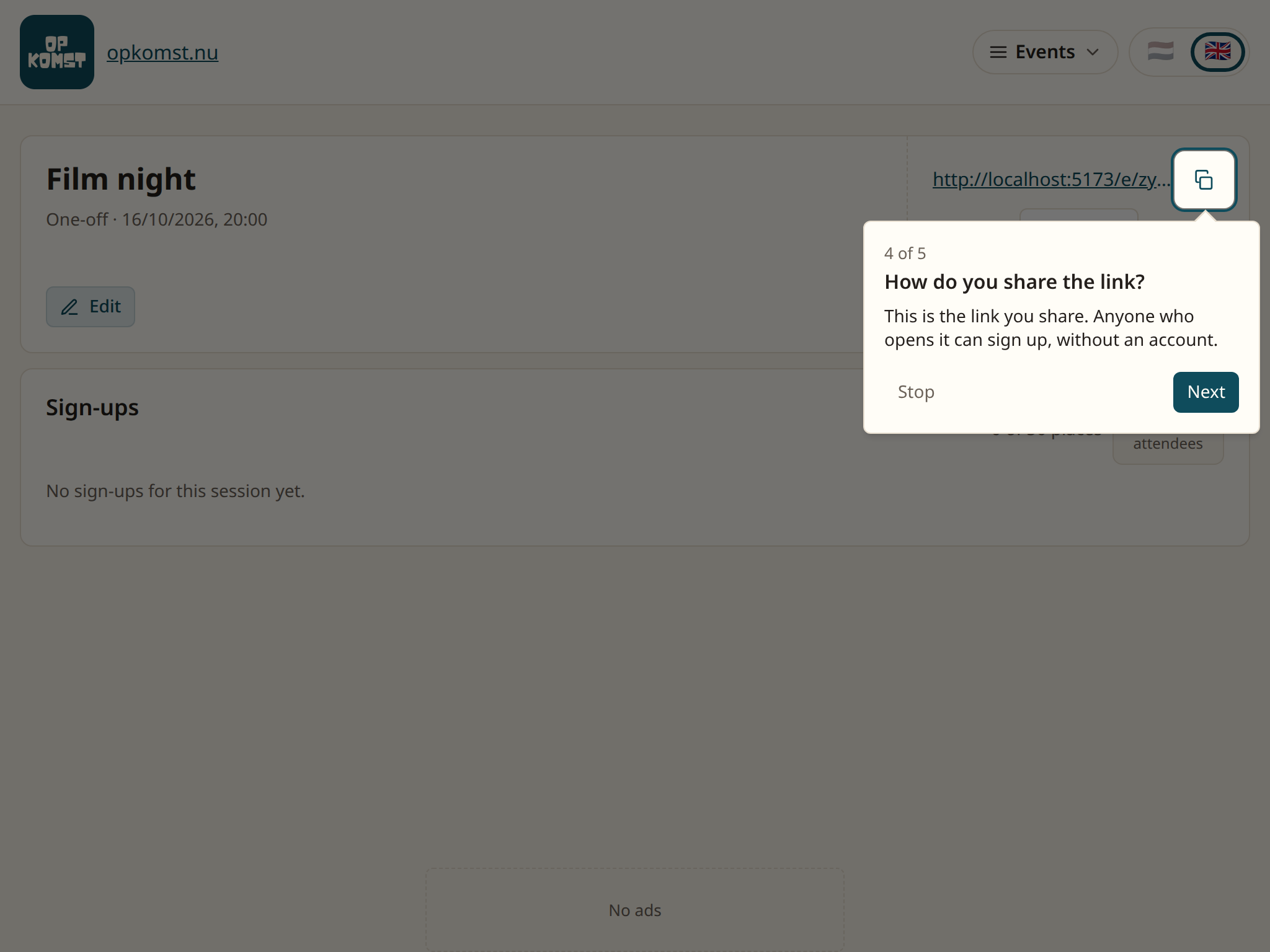
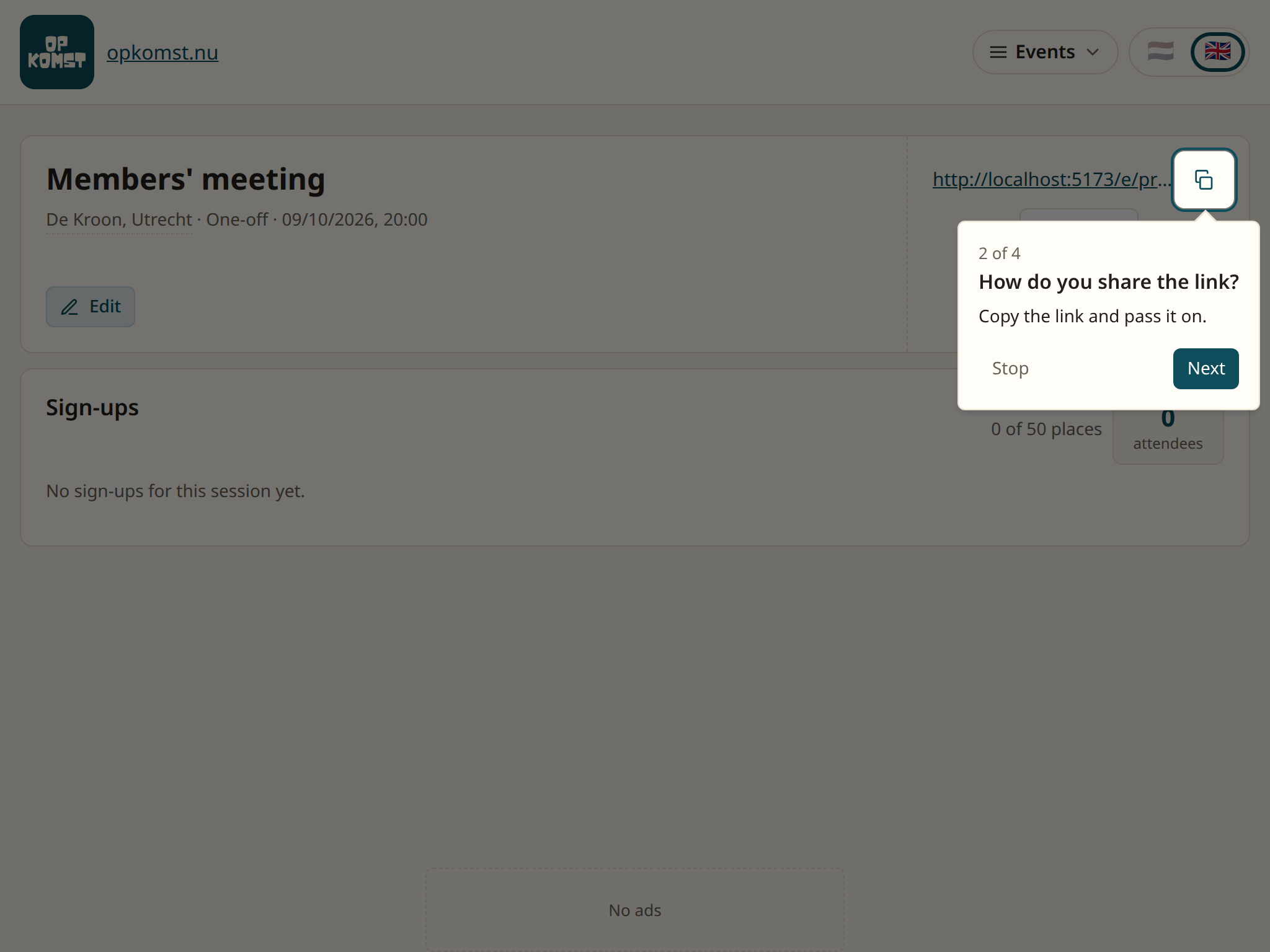
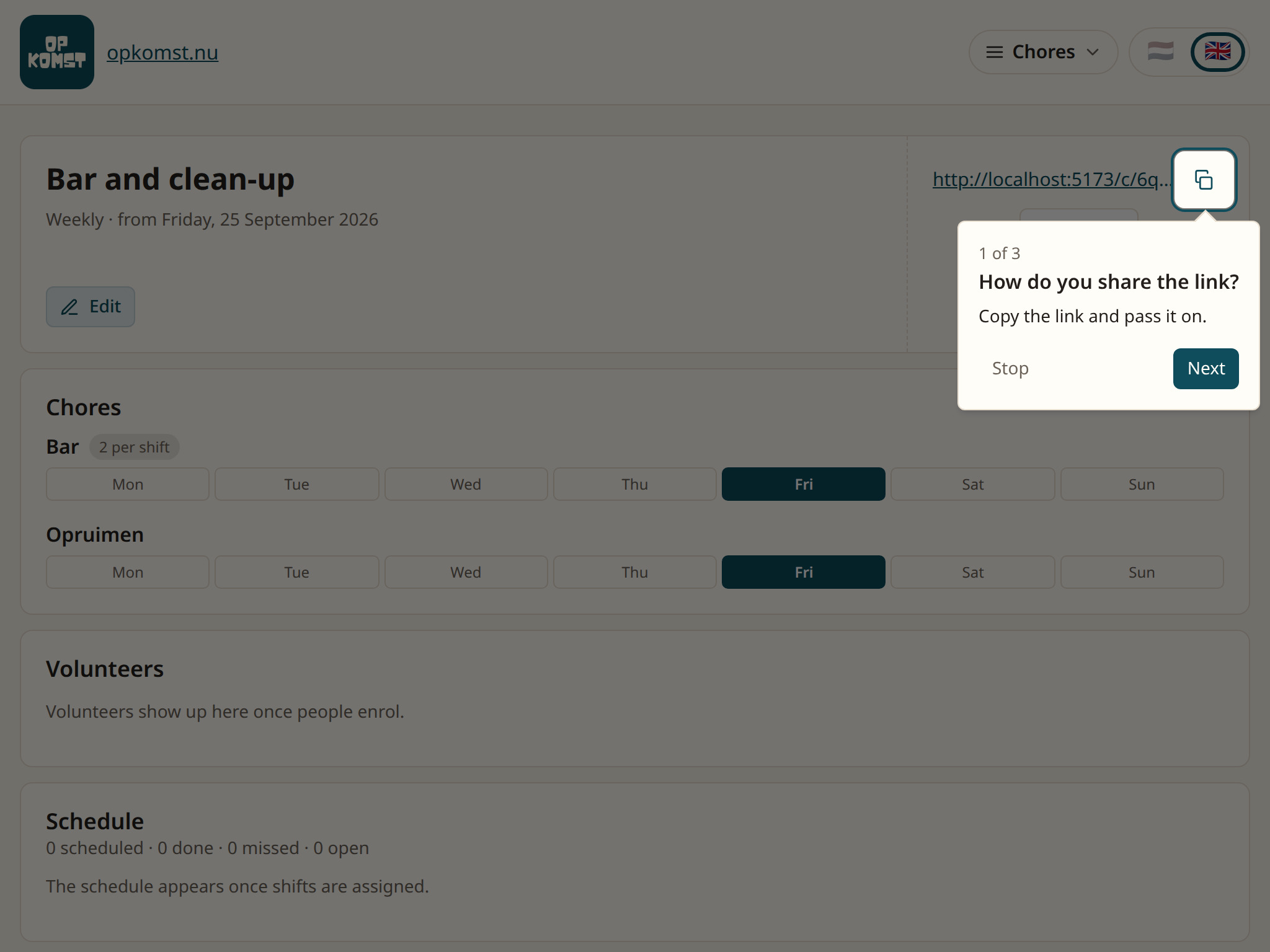
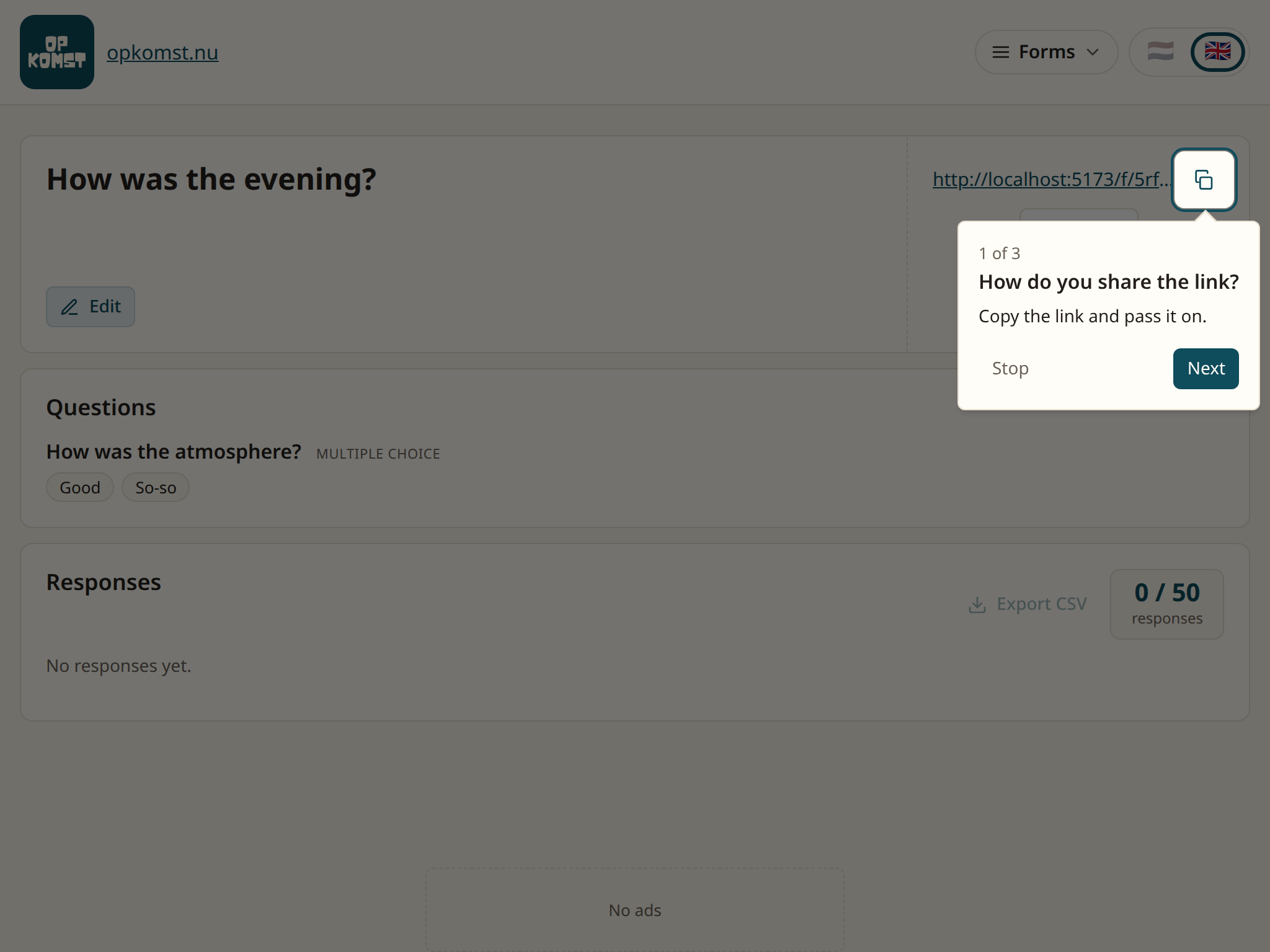
Open your event. The link is at the top right, with a copy button next to it.
The link at the top right of the event's page
Click the copy button and paste the link in the group chat, a mail or on the website.
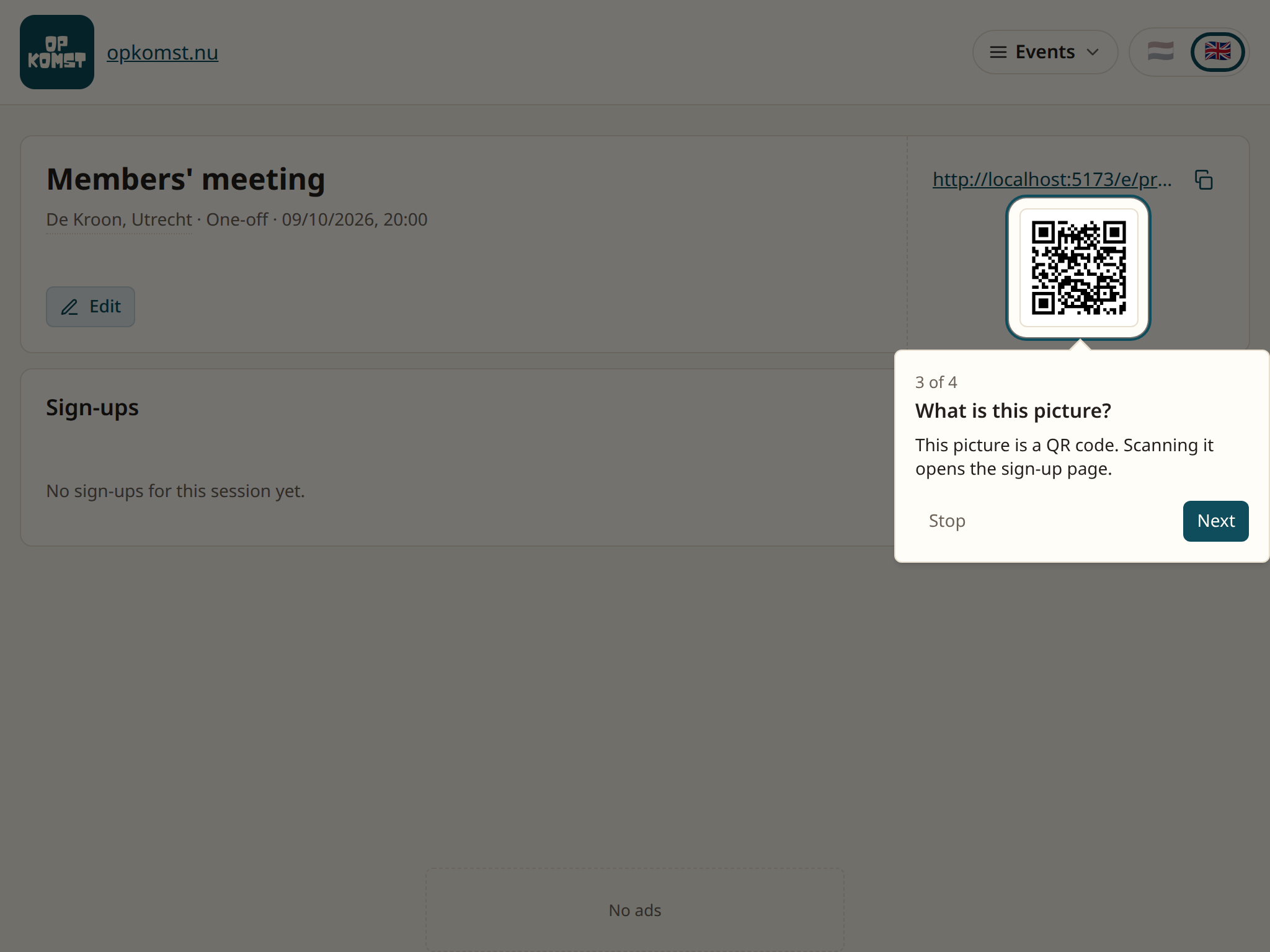
Making a poster? Click the picture under it. That is a QR code, and it is copied as an image.
The QR code under the link
You now see
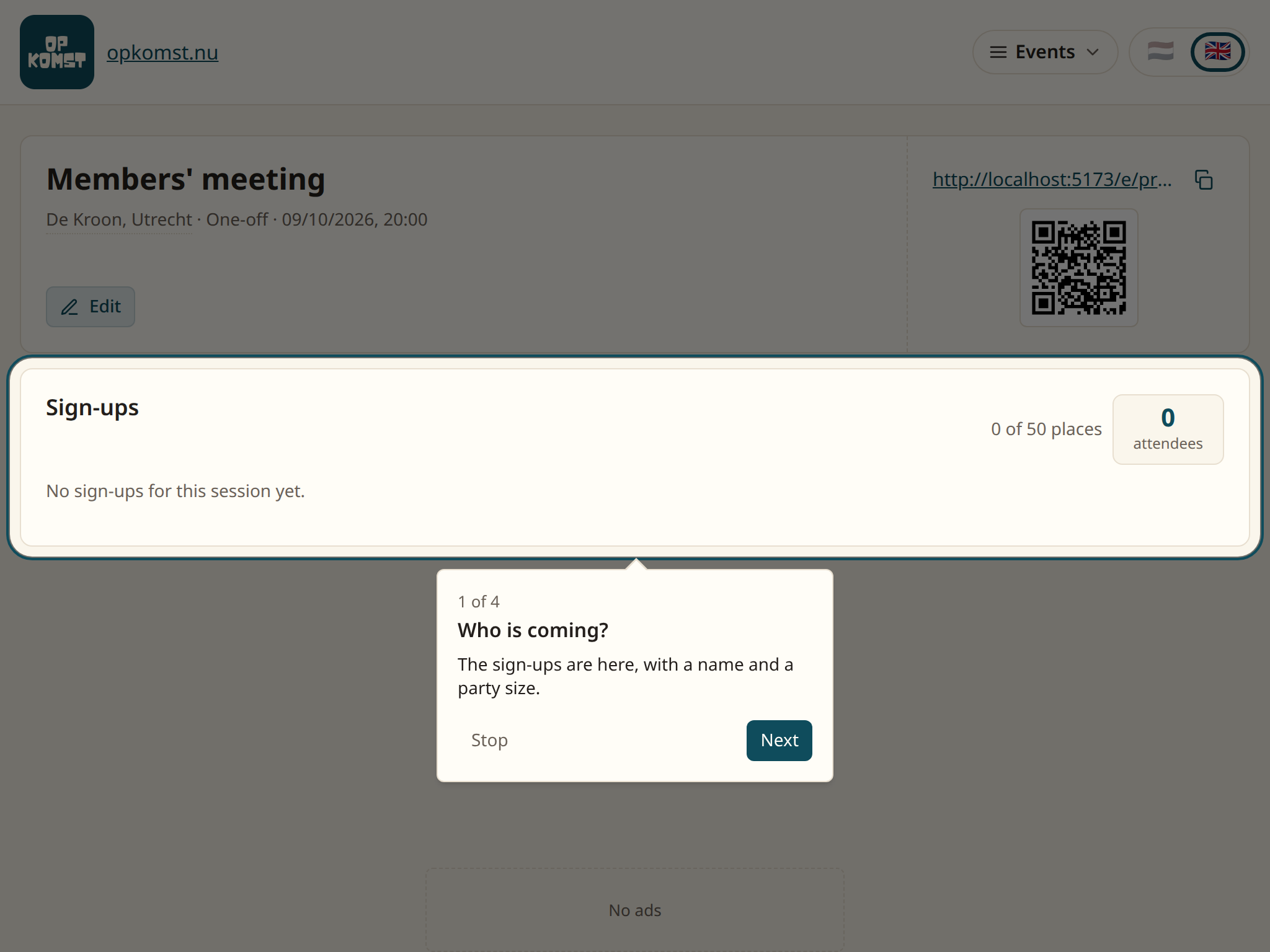
Under the title is the Sign-ups block. Every sign-up lands there, with the name and the party size. The number on the right adds up.
The Sign-ups block on the event's page
The link does not work for somebody? Check that the event is not in the archive. An archived event has no working link.
Questions
What does somebody fill in? A name, real or made up, and how many people they bring. If you switched on How did you find us?, they also pick where they know you from. The page asks nothing more.
Can somebody withdraw? Yes. After signing up, everyone is shown their own link, once. With that link they change their sign-up or withdraw it. You need do nothing.
Somebody lost that link. In the Sign-ups block, click View sign-ups and then the link button next to the name. You make a new link for that person, and the old one stops working. Their page will say that an organiser did this.
Do I see email addresses? No. If somebody leaves an address, only the app sees it, and only to send the mail you switched on.
4. How do I make an event come back?
An event can come back, every week or every few weeks. You set it once and the app makes the next dates.
Steps
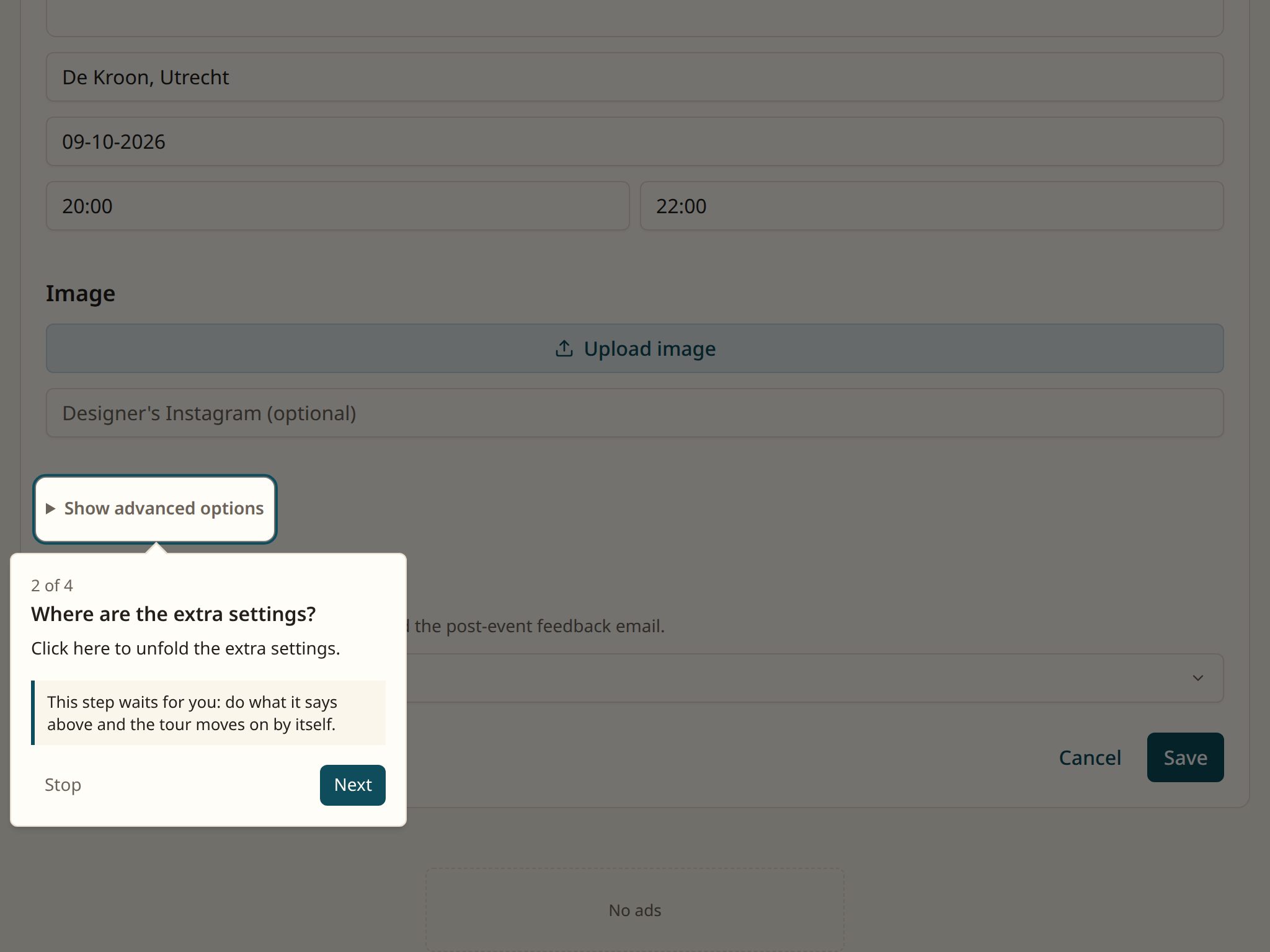
Open the event's form and click Show advanced options at the bottom.
The Show advanced options line under the form
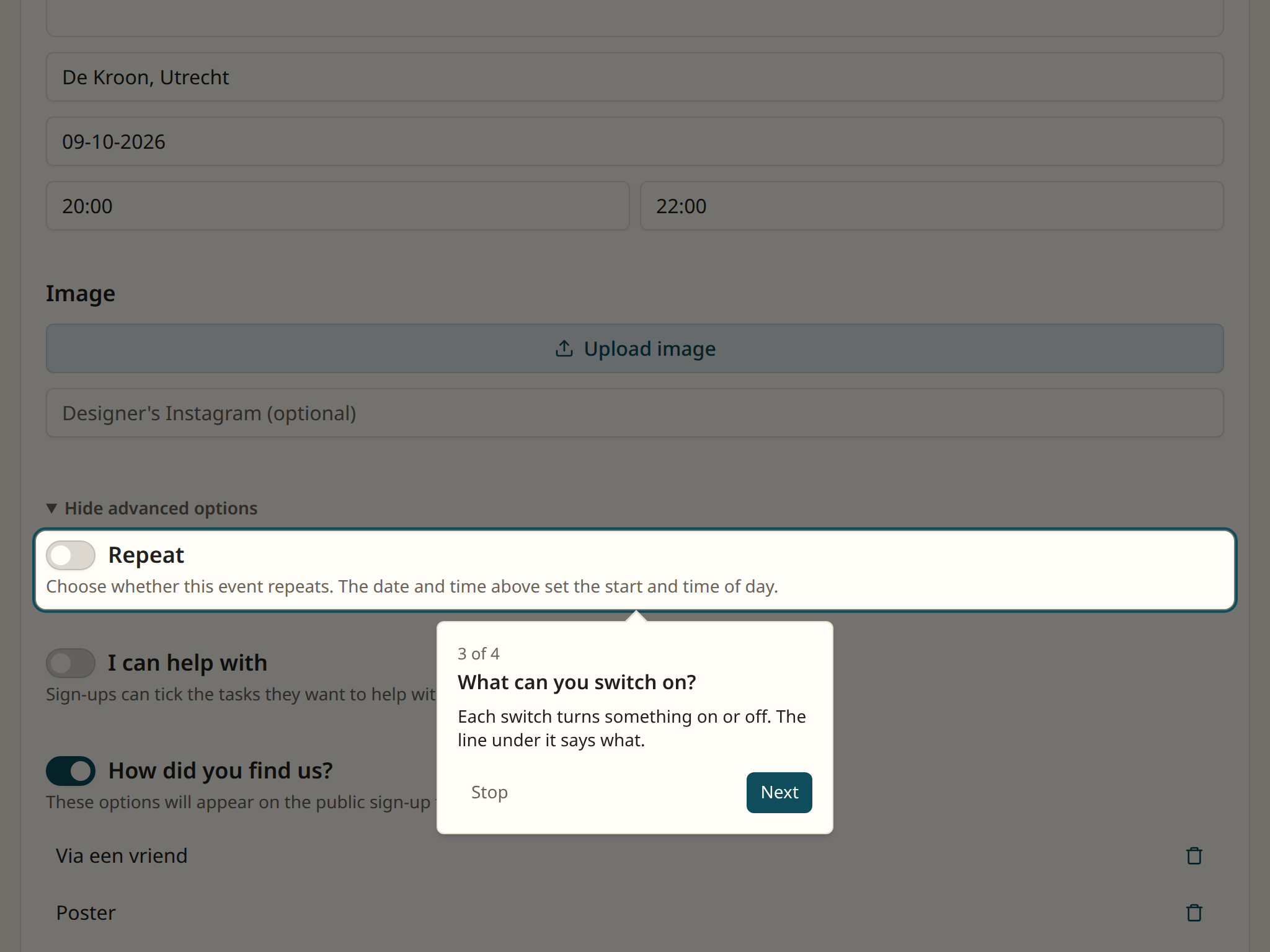
Switch on Repeat. The date and time you filled in at the top are the start.
The Repeat switch, at the top of the unfolded options
Choose how many weeks the pattern lasts. Repeats every 1 weeks brings it back every week. At 2 weeks, every other week.
In the grid under it, pick the days the event is on. One day a week is the usual case, but two is fine.
Choose whether it runs on or ends. Ongoing, no end date keeps making new dates. For 8 weeks stops after eight weeks.
Save.
You now see
On the event's page the coming dates are listed, each with its own sign-ups. There is one link for the whole event. Whoever opens it picks the dates they will come.
The dates are wrong? Look at the date at the top of the form. That is the first time, and its weekday counts in the pattern.
Questions
Can I skip one date? Change the pattern, or set an end and make a new event after it. Removing one date is not possible, because people may already have signed up for it.
What happens to sign-ups when I change the pattern? Dates that already have sign-ups stay. Dates without sign-ups that no longer fit the pattern go.
How far ahead does the app make dates? About three months for an ongoing event. Every night some are added, so the list never runs out.
Can a roster do the same? Yes, the roster uses the same pattern of weeks and days. See the chapter on sharing out the chores.
5. How do we pick a date together?
A date poll is a list of dates people choose from. You see at a glance which date the most people can make.
Steps
Click the Date poll tile and then New date poll.
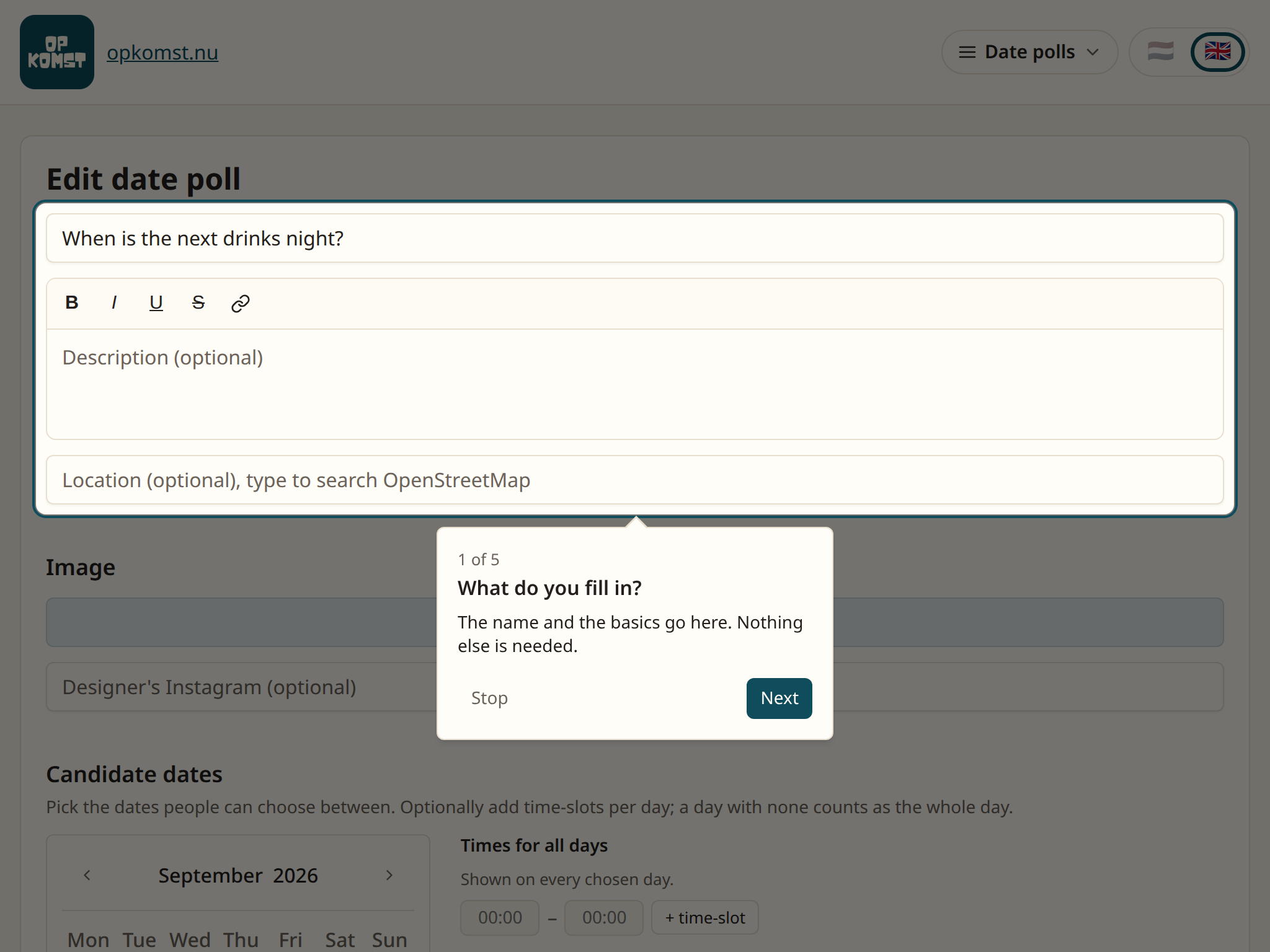
Type a title. A description is optional.
The form with the title at the top
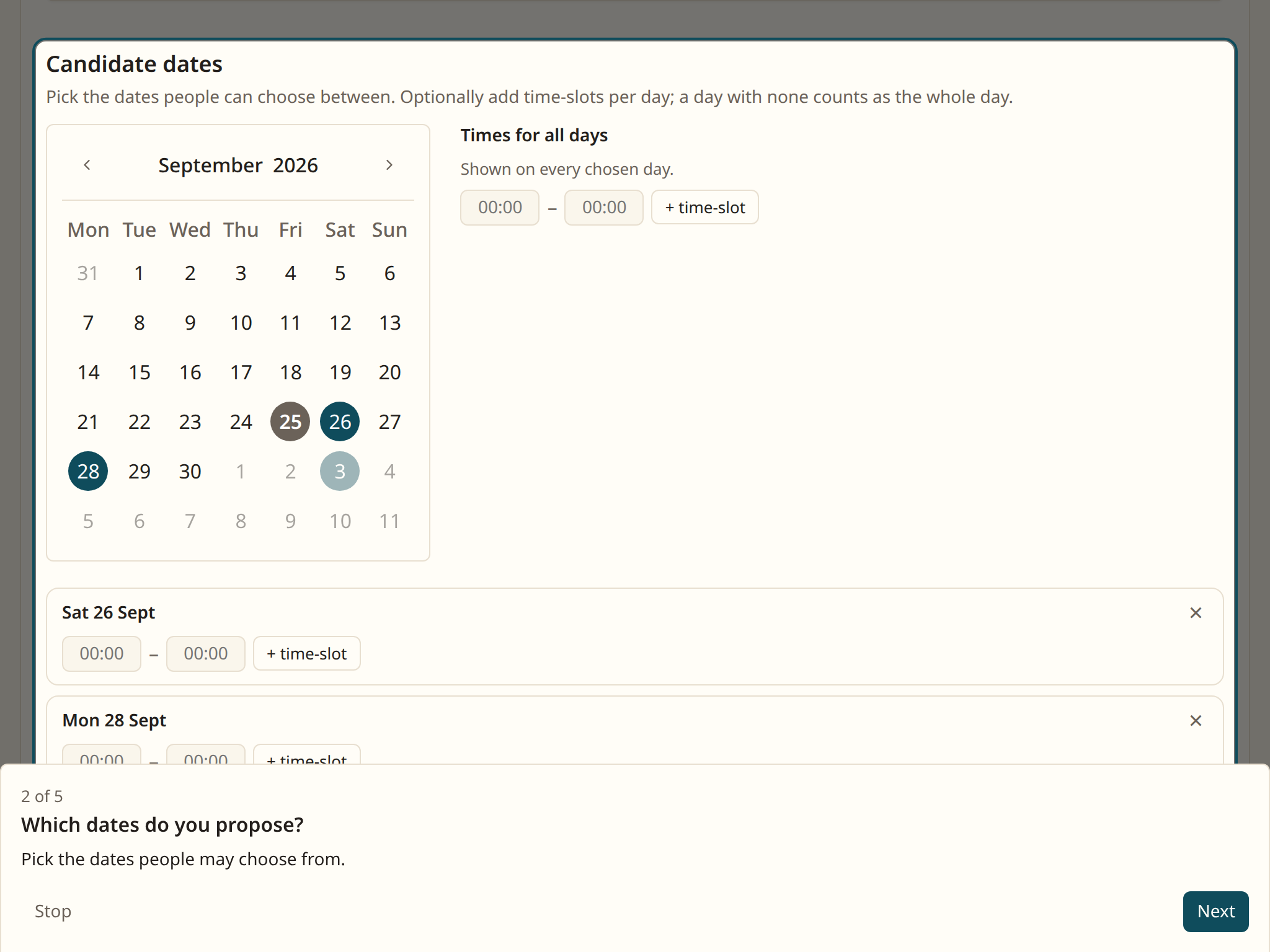
In the calendar under Possible dates, click the days you want to propose. To propose times on a day as well, click + time slot on that day. Without a time slot the whole day counts.
The calendar with the chosen dates
Click Create date poll at the bottom.
You now see
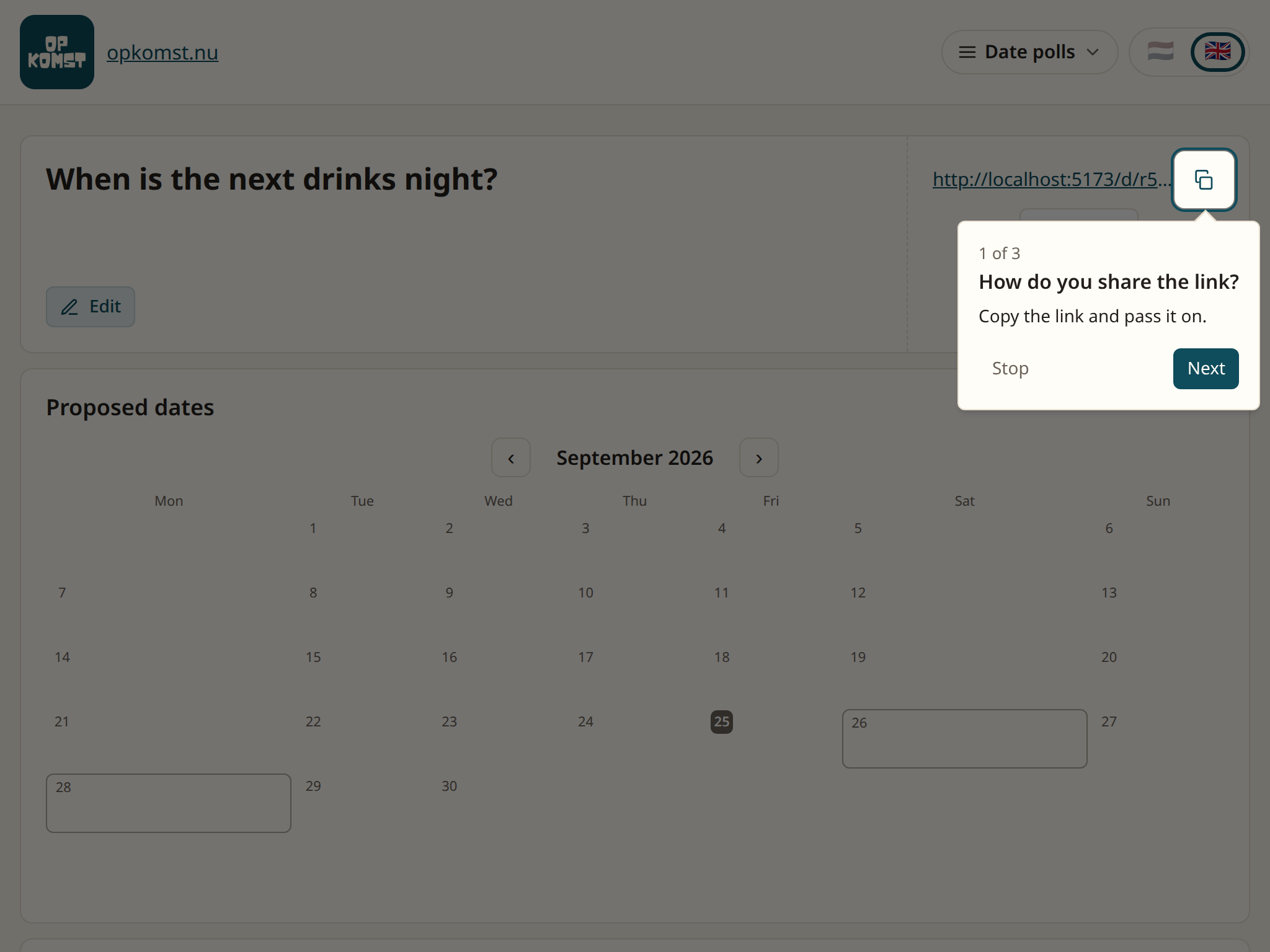
The date poll's page, with the link at the top right. Share it with the group. Whoever opens it taps the moments they can make: Yes or Maybe. A moment somebody does not tap counts as "can't".
The date poll's page with the link at the top right
Somebody cannot see the dates? On a phone the days sit side by side. A hint says there are more days to the right.
Questions
How do I see which date wins? Under Responses on the page is a table: per date, how many people can, maybe can, or cannot. The best date is marked, with a 1st, 2nd and 3rd place.
Can somebody leave a note? Yes, there is a Note box. The notes are on your page under the table.
Can somebody still change their answer? Yes, with the personal link everyone sees after filling in. If you do not want that, switch off Answers can be changed later under the advanced options.
Does a date poll ask for an email address? No. A date poll sends no mail, so there is nothing to ask an address for.
6. How do I share out the chores?
A chore roster shares recurring chores among the people who sign up. The app builds the roster and keeps it fair.
Steps
Click the Roster tile and then New roster.
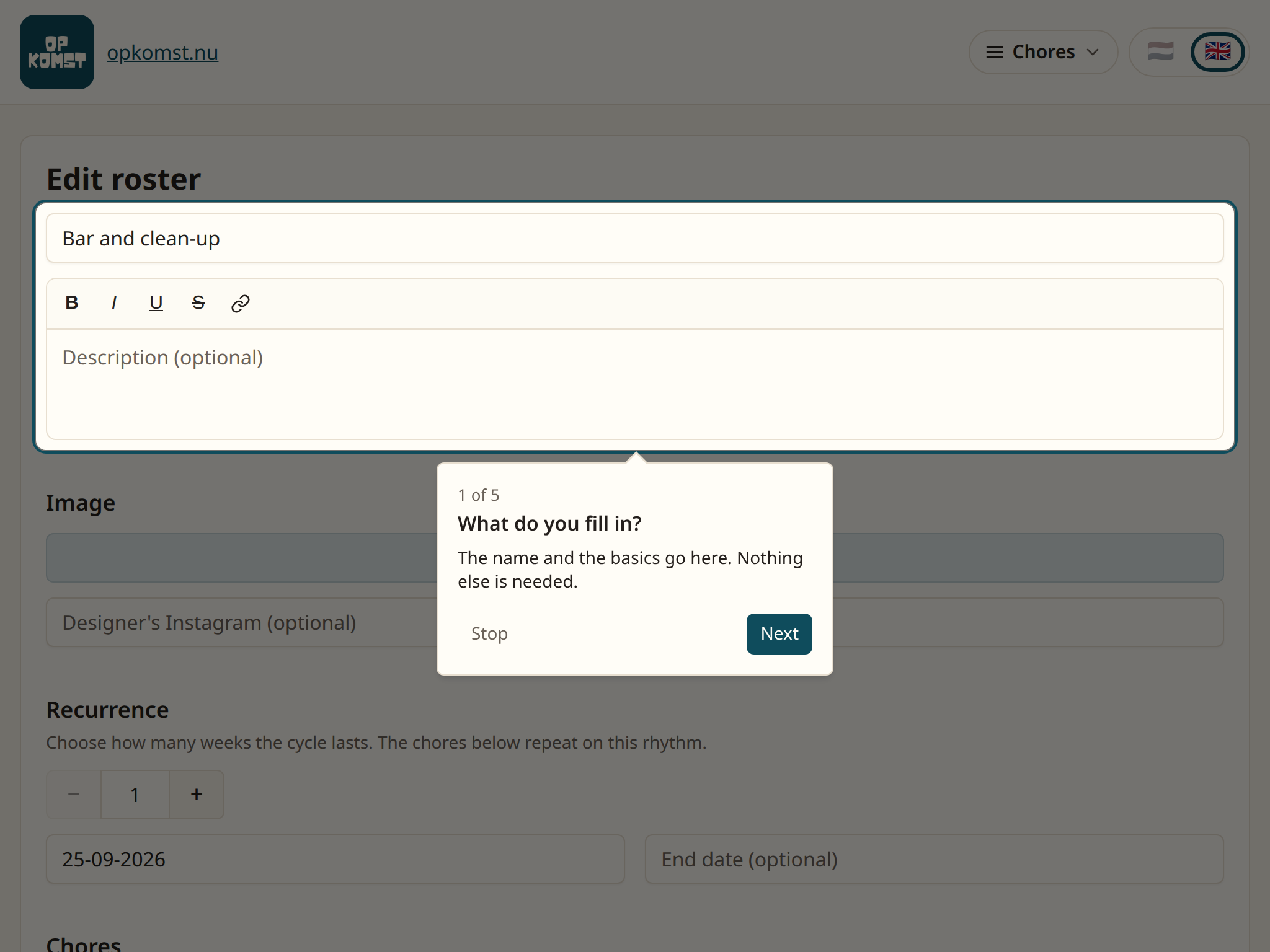
Type a title, for instance the name of the evening or the room.
The form with the title at the top
Under Repeat, choose how many weeks the cycle lasts. At 1 week every week is the same. At 2 weeks, week one has different chores from week two.
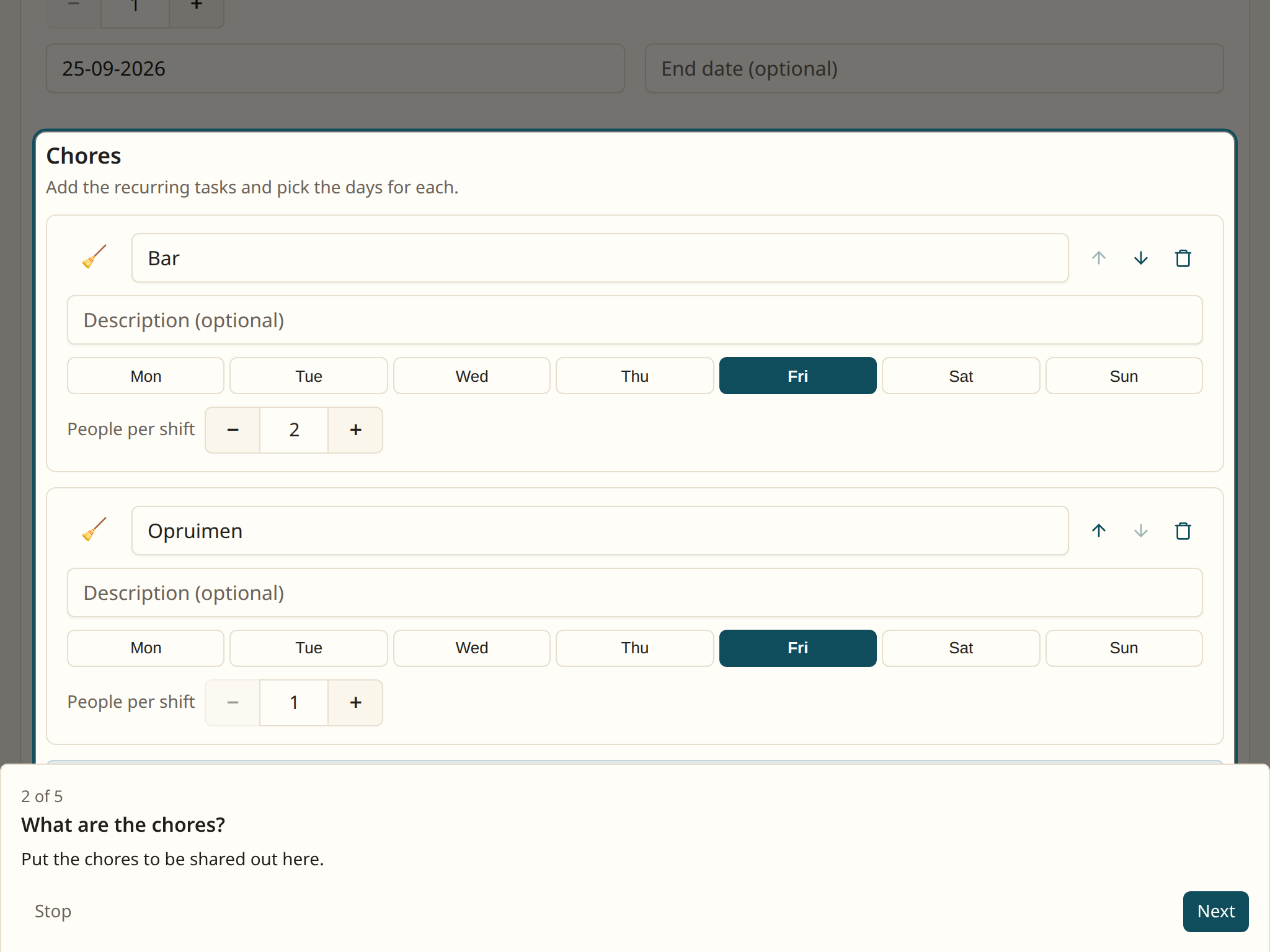
Under Chores, click Add chore. Give the chore a name, pick the days it falls on, and under People per chore how many people it takes.
The Chores block with a few chores
Click Create at the bottom.
You now see
The roster's page, with the link at the top right. Whoever opens it picks the chores they are willing to do and signs up. The app assigns them and keeps track of who has done the most.
The roster's page with the link at the top right
Under Roster is the calendar. Locked means a shift is fixed. Tentative is an expectation that may still move.
The roster stays empty? Nothing appears until the first volunteer has signed up.
Questions
What can a volunteer do themselves? Everything from their own page, which they get after signing up: pass on a shift, take an open one, cover for somebody, and leave. You need do nothing.
How fair is it? Every volunteer has a counter. The lowest is up next, and covering for somebody puts you ahead. Somebody who ticked two of six chores gets fewer turns than somebody who ticked all six.
What is Days fixed in advance? Under the advanced options is how many days ahead the roster is fixed. Beyond that it is an expectation. That is what lets somebody who joins later fold in quickly.
Does the roster ask for an email address? It may, but it does not have to. The address is used once to send the personal link and not kept.
Somebody new signs up. When do they join in? From the first shift outside the fixed days. With Fold in now on the roster's page you slot them in earlier.
7. How do I make a questionnaire?
A questionnaire is a list of questions with a link. Whoever opens the link fills it in, without an account.
Steps
Click the Questionnaire tile and then New questionnaire.
Type a title.
The form with the title at the top
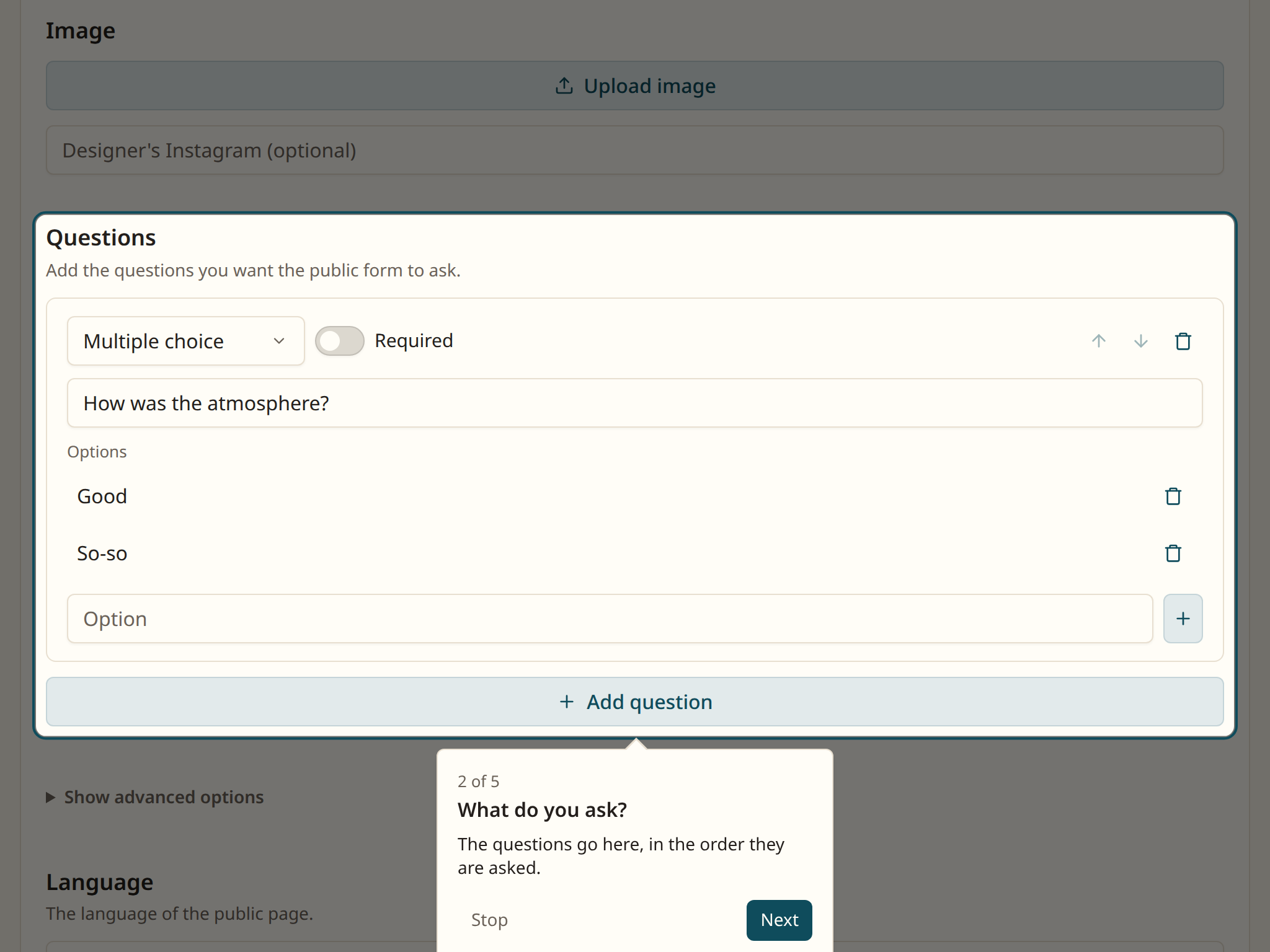
Under Questions, click Add question. Type the question and pick the kind: a star rating, a text box, multiple choice, multiple answers or a number. For multiple choice you type the answers under it.
The Questions block with a question in it
Click Create questionnaire at the bottom.
You now see
The questionnaire's page, with the link at the top right. Whoever opens it sees the questions in the order you chose.
The questionnaire's page with the link at the top right
Under Submissions the answers land. Per question you see a summary: an average for a rating, a count for multiple choice, the text for a text question.
A question is refused on saving? A multiple choice question needs at least two answers, and every question needs a text. The message says which question it is.
Questions
Can I change the order? Yes, with the arrows next to each question. Answers already in stay with their question.
Can somebody change their answer later? Yes, with the personal link everyone sees after sending. Switch off Answers can be changed later if you do not want that.
Does somebody have to give a name? No, unless you switch on Name required. A made-up name is always fine.
Can I download the answers? Yes, as CSV, with Export CSV above the submissions.
8. How do I make a quiz?
A quiz is a questionnaire with right answers. Whoever fills it in gets a score.
Steps
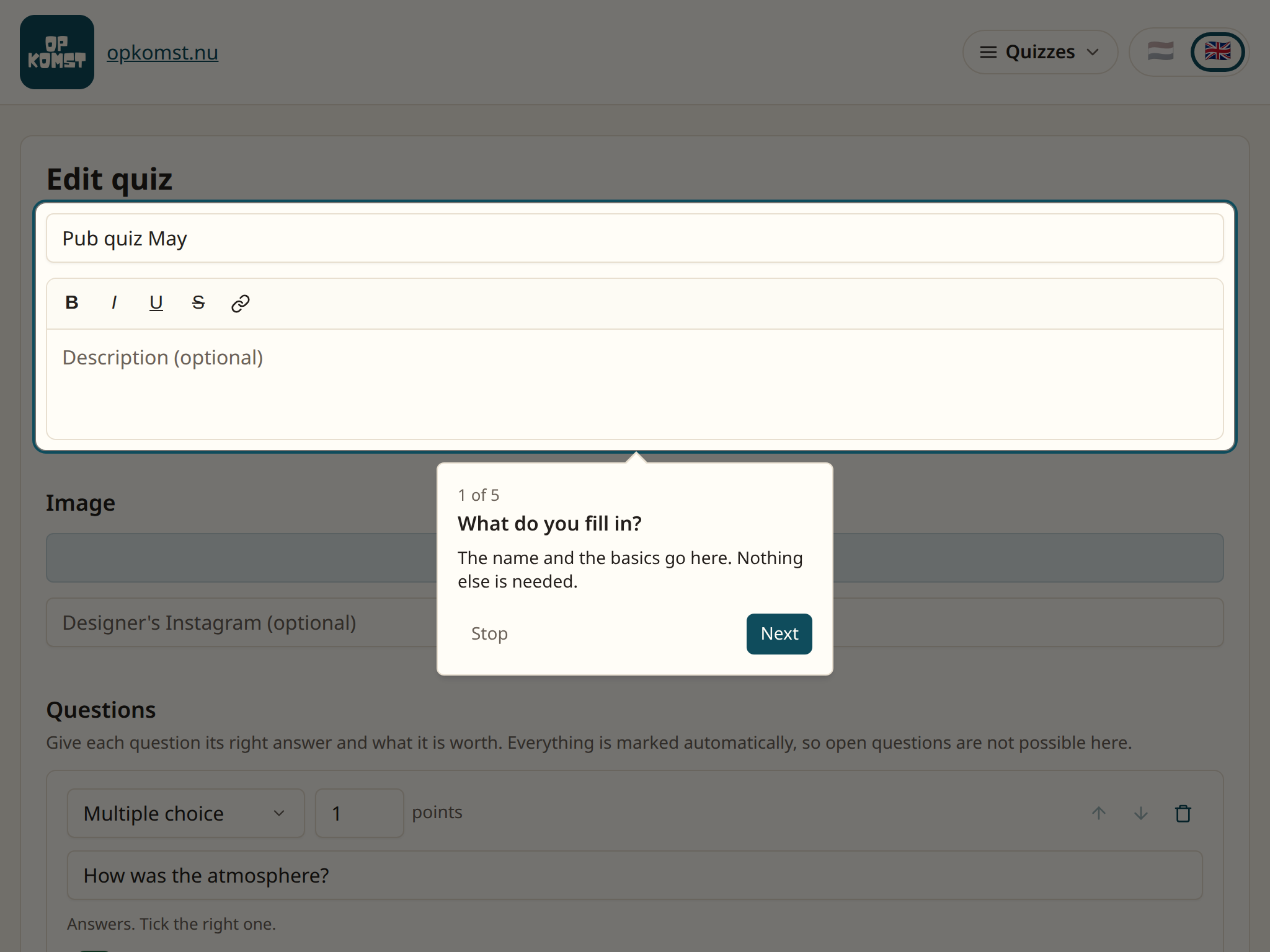
Click the Quiz tile and then New quiz.
Type a title.
The form with the title at the top
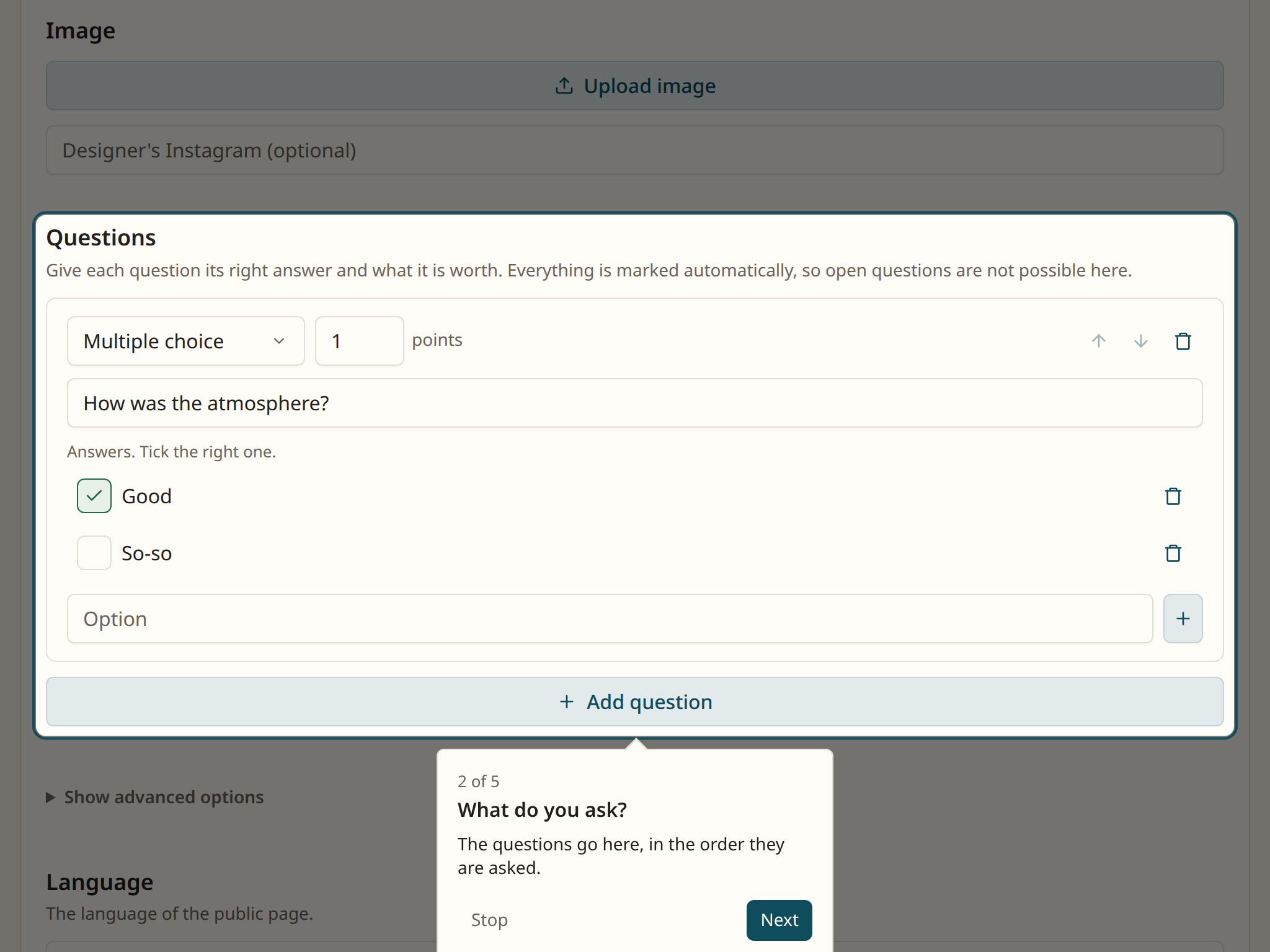
Under Questions, click Add question. Type the question, put the answers under it and tick the right one. For a number you type the right number, with a margin if you like.
The Questions block with a quiz question in it
Give each question points. A hard question may be worth more.
Click Create quiz at the bottom.
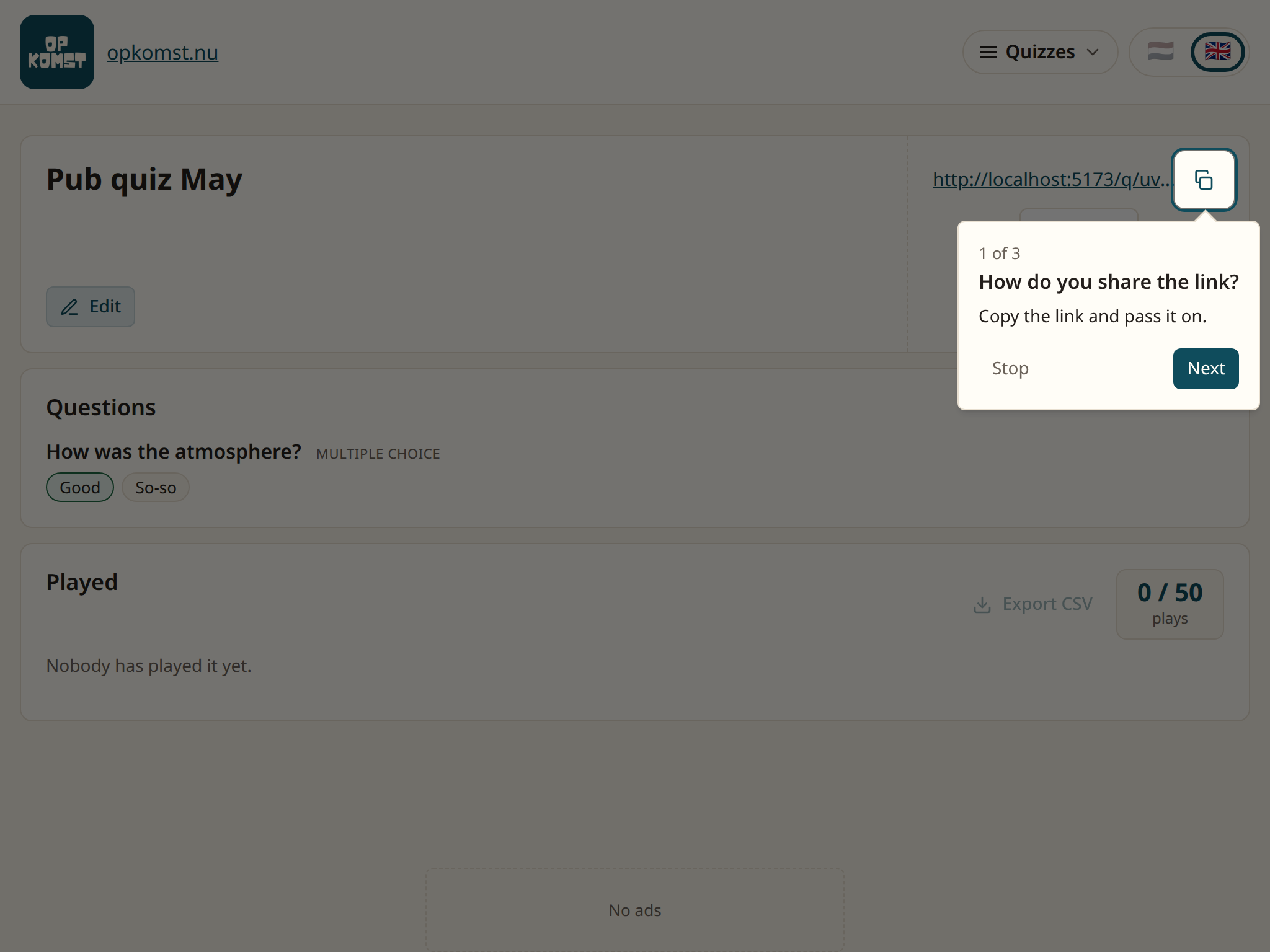
You now see
The quiz's page, with the link at the top right. Whoever opens it answers the questions and then sees their score. Everything is marked automatically, so open questions are out.
The quiz's page with the link at the top right
Under Submissions are the scores, with the name somebody gave.
A question is refused? Multiple choice has exactly one right answer. The message says which question it is.
Questions
Do players see which questions they got wrong? Yes, unless you switch off Show answers under the advanced options. Do that when you play the same quiz twice in one evening.
Can somebody change their answers afterwards? No. A quiz's personal link only shows the score. Seeing the score and then changing the answers would be cheating.
Does somebody have to give a name? No. Without a name the score is listed as anonymous. Switch on Name required if you want to know who scored what.
Can I use the same quiz twice? Yes. The link keeps working as long as the quiz is not in the archive. Or make a copy by creating a new quiz.
9. How do I make a compass?
A compass is a questionnaire with statements on axes. Whoever fills it in sees where they stand, and you see where the group stands.
Steps
Click the Compass tile and then New compass.
Type a title.
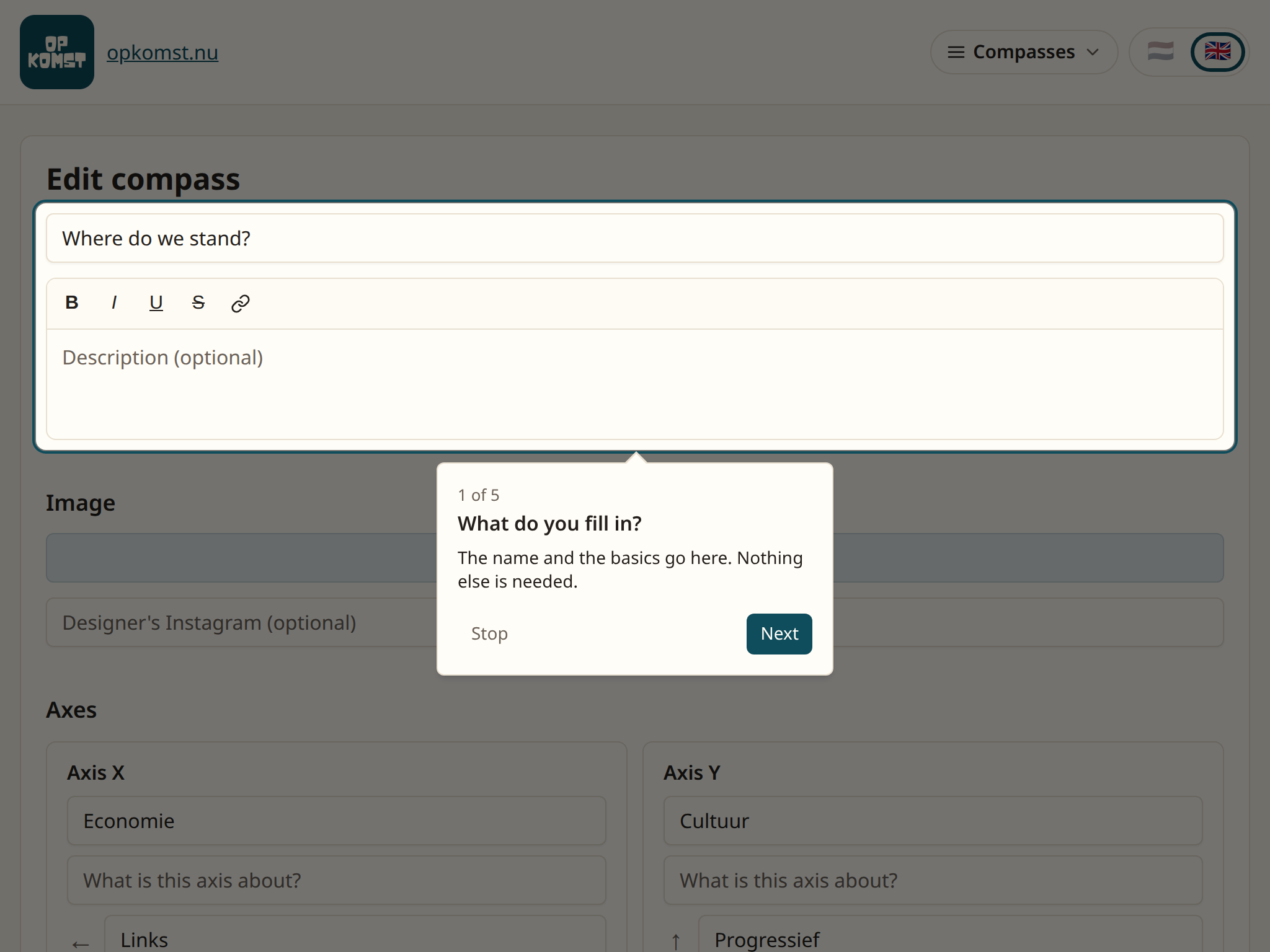
The form with the title at the top
Under Axes, name the two axes and their two sides. For instance an Economy axis with left and right, and a Culture axis with conservative and progressive.
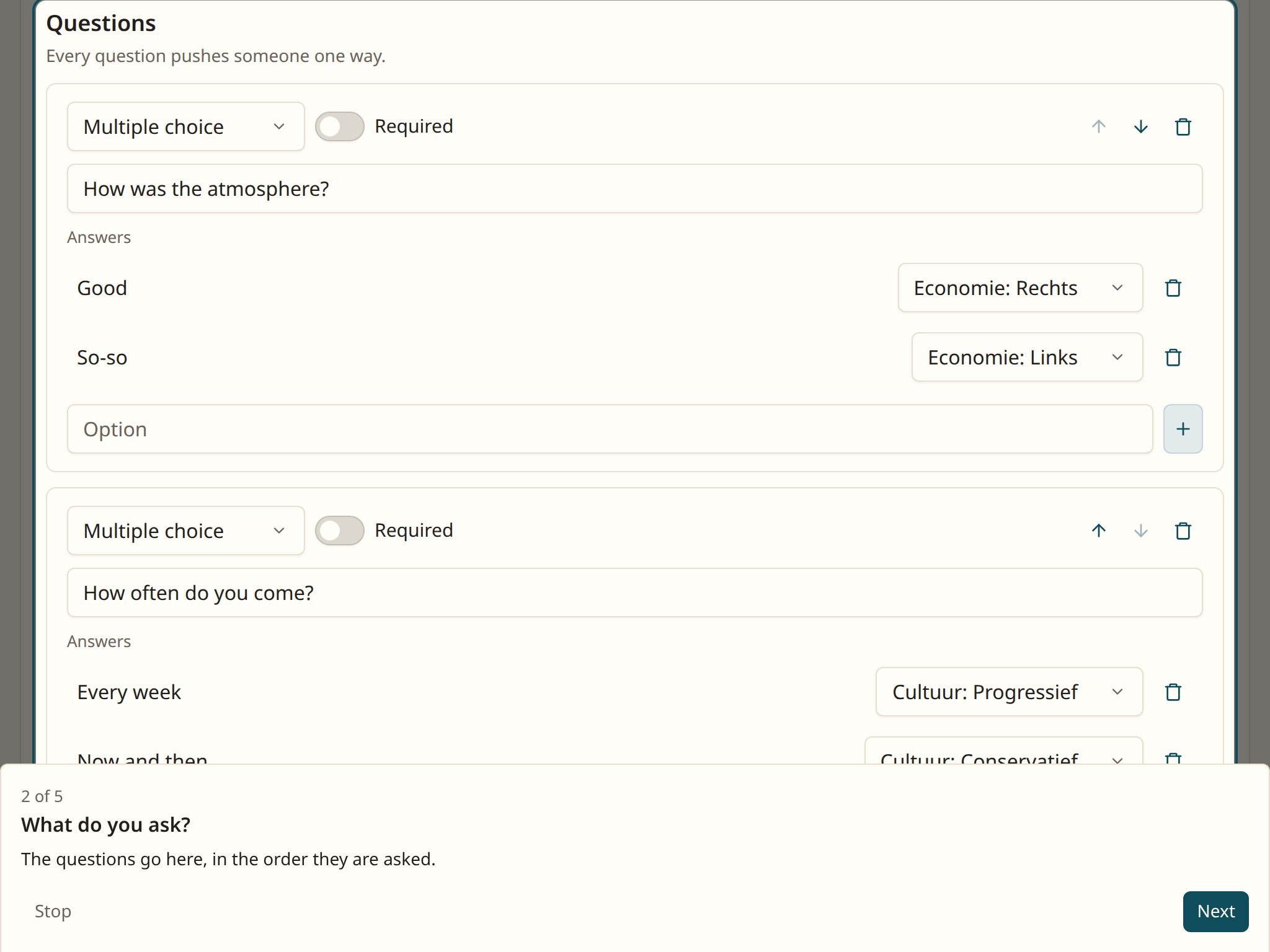
Under Questions, click Add question. For each answer you pick which side of which axis it pushes somebody towards.
The Questions block with a statement in it
Click Create compass at the bottom.
You now see
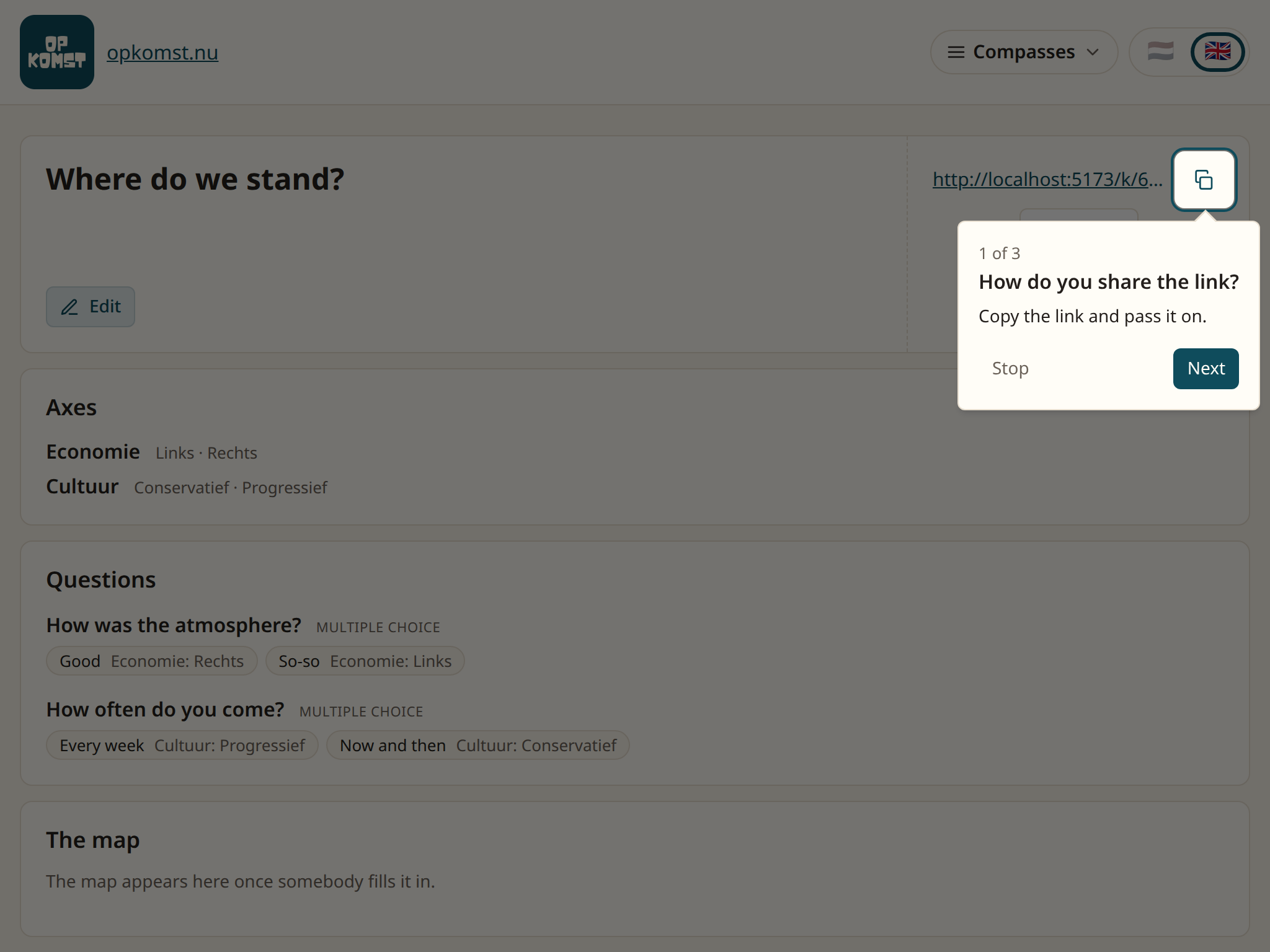
The compass's page, with the link at the top right. Whoever opens it answers the statements and then sees a map with a dot: that is where they stand.
The compass's page with the link at the top right
On your page, under Map, is the same map with everyone on it.
An axis is refused? Every axis needs at least one question. Otherwise everyone lands on zero on that axis, and the message says so.
Questions
Does everyone see each other's name? Yes, the name goes on the map and everyone who fills in the compass sees it. The page says so beforehand. Anyone who prefers to stay anonymous leaves the name empty.
Can somebody change their answer later? Yes, with the personal link. Switch off Answers can be changed later if you do not want that.
How does the arithmetic work? Each answer counts as a step towards a side of an axis. The dot is the mean of those steps per axis, so an axis with many questions weighs no more than one with few.
Can I download the results? Yes, as CSV, with Export CSV above the submissions.
10. How do I tidy up, and how do I get something back?
What is over goes into the archive. It leaves your list, but it is not gone.
Steps
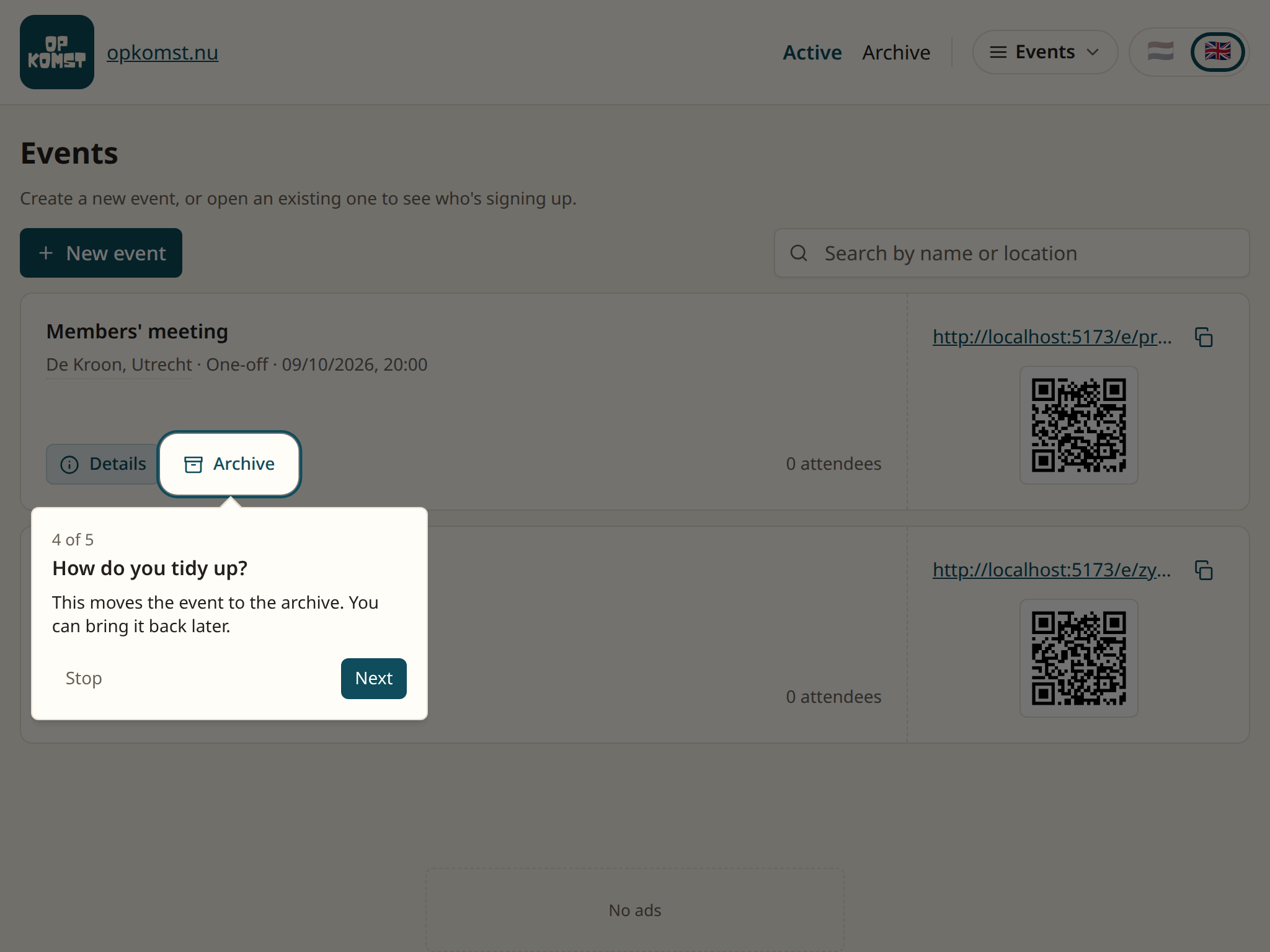
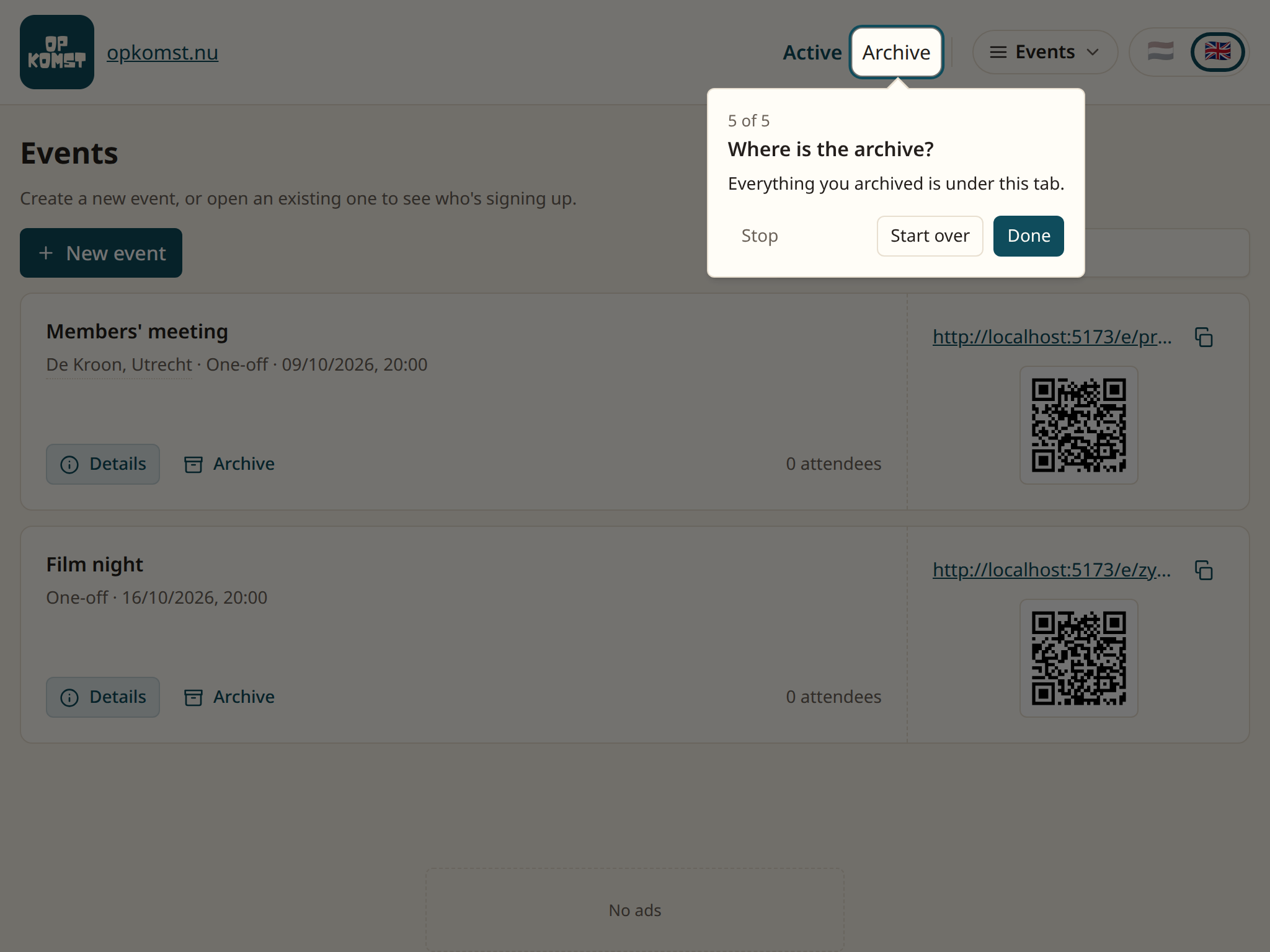
Go to the list, for instance Events. Every event has an Archive button.
The Archive button on an event in the list
Click it and confirm. The event leaves the list, and its public link stops working.
Want it back? Click Archive at the top.
The Archive tab at the top of the list
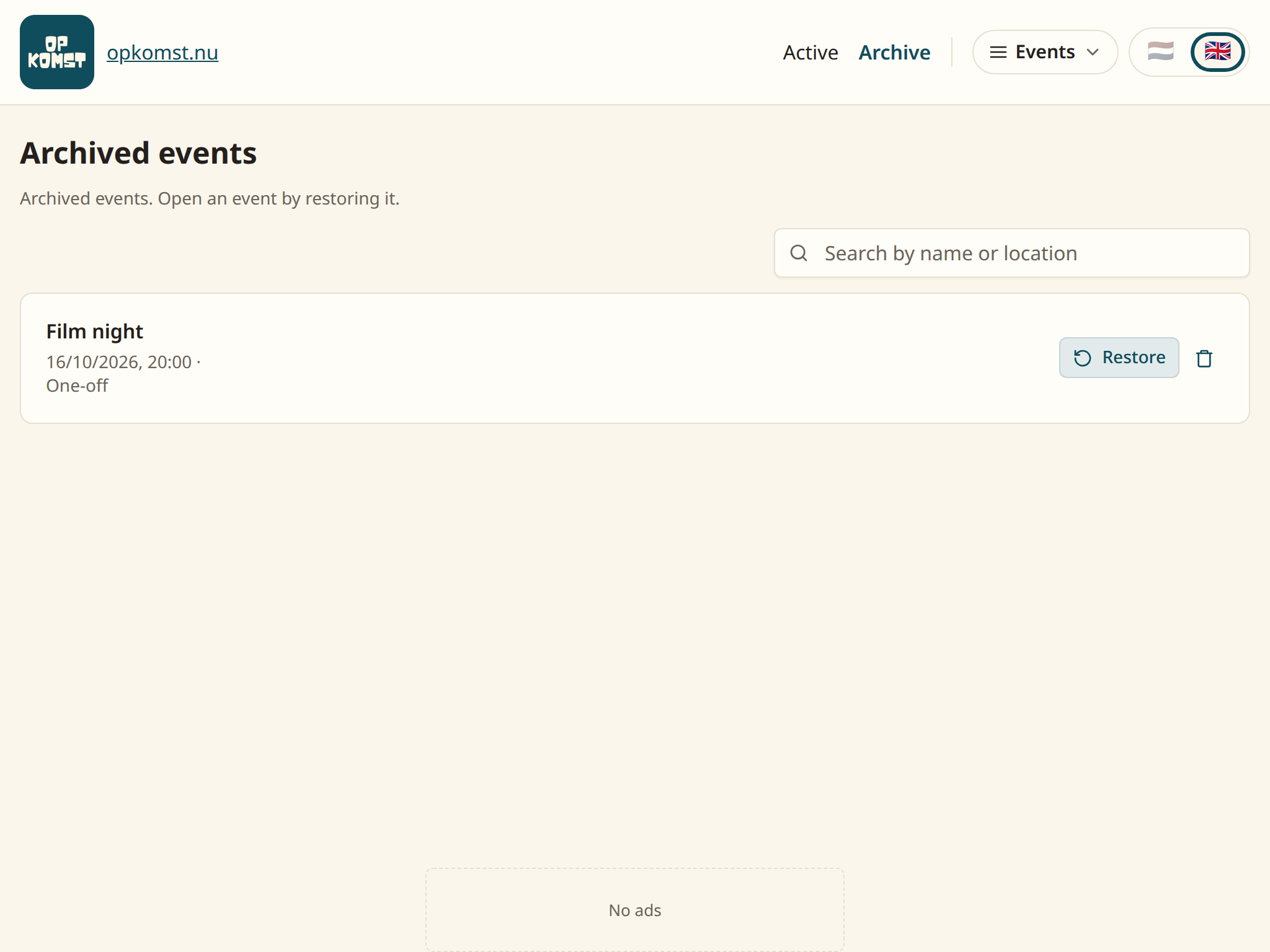
Click Restore on the event. It is back in the list with everything that belonged to it, and the link works again.
You now see
The archive: everything you tidied away, each with the buttons Restore and Delete permanently.
The archive with an archived event in it
It is not in the archive? Check that you are looking in the right list. Each kind of thing has its own archive: events, date polls, rosters and questionnaires separately.
Questions
How is this different from deleting? Archiving can be undone and keeps everything. Delete permanently removes the event with all its sign-ups and answers, and that cannot be undone. That button is only in the archive.
What happens to email addresses on archiving? Mail that was still waiting is not sent, and the addresses for it go at once.
Do I have to tidy up? No. A long list is only inconvenient. A personal account does count only what is active, so tidying up makes room.
Can I still look at an archived event? Restore it first. In the archive you only see the name and the date.
11. When something goes wrong
This chapter is for when something does not go as you thought. For each case it says what you see, what happened and what to do.
The sign-in mail does not come
You see: the page says the link is on its way, but nothing arrives.
What happened: the mail is in your spam folder, or you made a typo in your address.
What to do: check your spam folder. Otherwise ask for a new link on the front page, and mind the address.
The link says it has expired
You see: a page saying "Link expired".
What happened: the link was older than half an hour, or already used once. Every link works only once.
What to do: click Request a new link and use the newest mail.
The date is wrong, and people have already signed up
You see: a wrong day or time on the event's page.
What happened: a typo when creating it.
What to do: click Edit and fix the date. The sign-ups stay. The app does not send a message about it, so say so in the group chat yourself.
Something was archived by accident
You see: it is no longer in the list, and the link does not work.
What happened: somebody clicked Archive.
What to do: go to the Archive tab and click Restore. Everything is still there, and the link works again.
Somebody cannot open the sign-up page
You see: the page says the link is no longer available.
What happened: the event is in the archive, or its date has passed.
What to do: restore it from the archive, or make a new event.
Somebody lost their personal link
You see: somebody asks you to change or withdraw their sign-up.
What happened: the personal link is shown once, and not stored.
What to do: in the Sign-ups block, click View sign-ups and the link button next to the name. Send the new link to that person. Their page will say that an organiser did this.
The form refuses to save
You see: a message at the top, for instance that the name is missing or that a question needs two answers.
What happened: the form is missing something it needs.
What to do: do what the message says and click again. What you typed stays.
You see an empty list where something should be
You see: "No events yet", while you are sure you had one.
What happened: you are looking in the wrong list, or it is in the archive.
What to do: check in the menu at the top right that you are in the right section, and look in the archive.